Disclosure: some links on this page are affiliate links. If you sign up through them we may earn a commission, at no extra cost to you.
Here is how to make Shopify store live in short: pick a paid plan, then go to Online Store in your admin, click Private, select Public and click Launch store. New stores start in private mode with a password page. Before you switch, finish payments, shipping, taxes, policies and a test order.
Last updated: October 2026 · How we researched this: we followed Shopify’s current help page on password protection, checked plan prices and trial terms on recent pricing breakdowns, and turned the steps into a launch checklist.
Key takeaways
- Every new Shopify store is private (password protected) until you launch it.
- Trial stores must choose a plan and add a business address before the password can be removed.
- The current path is Online Store, then Private, then Public, then Launch store. Older guides that mention “Preferences” are out of date.
- Place a real or test order before launch to check payments, shipping and emails.
- After launch, submit your sitemap to Google Search Console so your pages get indexed.

Before you launch: what Shopify needs from you
Shopify will not let a trial store go public until a few basics are done. As of October 2026, new accounts get a free trial and then $1 per month for the first three months on selected plans. After that, Basic costs $29 per month billed yearly or $39 billed monthly, according to NerdWallet’s Shopify pricing guide.
| Plan | Price (billed yearly) | Price (billed monthly) | Good for |
|---|---|---|---|
| Starter | $5 | $5 | Selling on social media and links, no full theme store |
| Basic | $29 | $39 | Most new stores |
| Grow | $79 | $105 | Growing stores that need more staff and reports |
| Advanced | $299 | $399 | Larger stores with lower card rates |
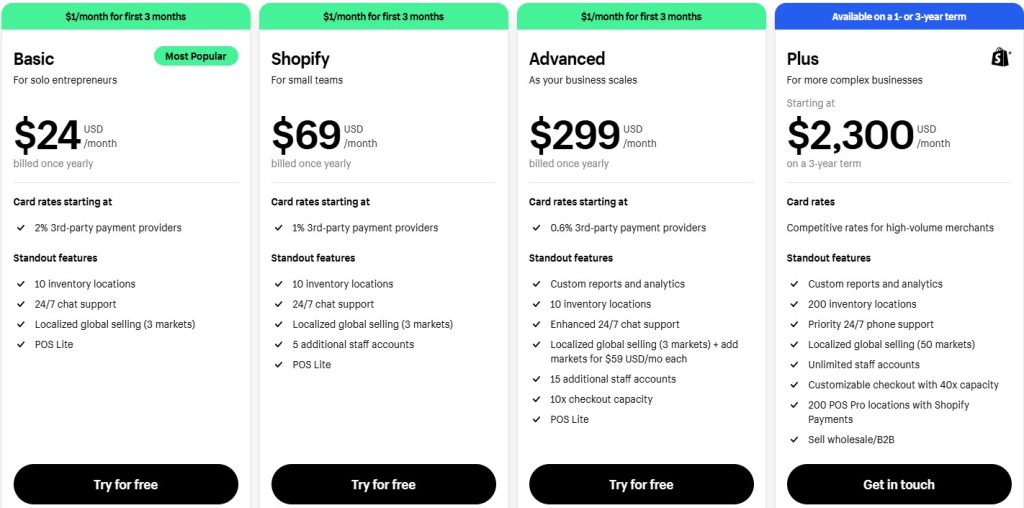
Pick Basic if you are not sure. You can upgrade later without rebuilding your store.
Pre-launch checklist
Work through this list in order. Each step lives under Settings in your Shopify admin.
- Store details: add your business name, address and a support email customers can reply to.
- Payments: activate Shopify Payments or connect PayPal or another provider.
- Shipping and delivery: create shipping zones and rates. Add free shipping thresholds if you use them.
- Taxes and duties: check which regions you need to collect tax in. Ask a local accountant if you are unsure.
- Policies: add refund, privacy, terms of service, shipping and contact information. Shopify can generate templates you then edit.
- Products: add titles, prices, photos, weights and inventory. Write your own descriptions instead of copying a supplier’s.
- Navigation: set up your main menu and footer menu with links to policies and contact.
- Domain: buy a domain or connect one you own, then set it as your primary domain.

How to make Shopify store live: step by step
Once the checklist is done, launching takes about a minute. These steps follow Shopify’s help page on password protection for your online store.
- From your Shopify admin, go to Online Store.
- Click Private.
- Select Public.
- Click Launch store. If you have launched before, the button says Update.
If Shopify asks you to pick a plan or add a business address first, complete that step. Then repeat the four steps above.
Making your store live from the Shopify app
In the Shopify mobile app, open Online Store under Sales channels and change the store from private to public. The app prompts you to finish any missing setup step before it removes the password.
Test before you announce it
Most launch problems show up at checkout. Run these tests before you share your link:
- Place a test order. Use Shopify Payments test mode, or buy a cheap product with a real card and refund it.
- Check the order confirmation and shipping confirmation emails.
- Try checkout on a phone and on a desktop browser.
- Click every menu and footer link.
- Check that shipping rates and taxes look right for two different addresses.

Launch week timeline
This simple plan helps you avoid a quiet launch.
| When | What to do |
|---|---|
| 7 days before | Finish the checklist, add at least 5 to 10 products, start an email signup on the password page |
| 3 days before | Place test orders, fix broken links, compress large images |
| 1 day before | Write your launch email and social posts, check the domain loads with https |
| Launch day | Make the store public, send the launch email, post on social channels |
| 7 days after | Submit your sitemap to Google Search Console, review analytics and abandoned checkouts |
Why is my Shopify store still not live?
| Problem | Likely cause | Fix |
|---|---|---|
| Password page still shows | No plan selected or setup step missing | Pick a plan, add your business address, then select Public again |
| Visitors see the old myshopify.com address | Custom domain not set as primary | Set your domain as primary under Settings, then Domains |
| “Not secure” warning | SSL still provisioning after connecting a domain | Wait and recheck; it can take up to 48 hours |
| Store not on Google | New sites take time to be indexed | Submit yoursite.com/sitemap.xml in Google Search Console |
After launch: first 30 days
Going live is the start, not the finish. Focus on traffic and trust first.
- Set up email capture and a welcome email. Our MailerLite guide covers a free option.
- Add only the apps you need. See our list of free Shopify apps.
- Collect your first reviews and add them to product pages.
- Write a simple digital marketing plan for your first 90 days.
If you have not built the store yet, start with our Shopify setup guide.
FAQ
Why can’t I remove the password on my Shopify store?
Trial stores must choose a paid plan and add a business address before the password can be removed. Once that is done, go to Online Store, click Private, select Public and click Launch store.
How long does it take to make a Shopify store live?
The switch itself takes about a minute. Preparing payments, shipping, policies and products usually takes a few days for a small store.
Do I need a custom domain to launch?
No. Your store can go live on its free myshopify.com address. A custom domain looks more trustworthy and costs about $16 per year through Shopify.
Can I make my Shopify store private again after launch?
Yes. Go to Online Store, click Public, select Private and update. Your store will show a password page again, which is useful during big redesigns.
Conclusion
Knowing how to make Shopify store live is the easy part. The real work is the checklist before it and the testing after it.
Choose a plan, finish your settings, run a test order, then switch to Public. Your store is open for business.