Disclosure: some links on this page are affiliate links. If you sign up through them we may earn a commission, at no extra cost to you.
To build an eCommerce website, choose a business and domain name, pick a hosted store builder such as Shopify, install a theme, set up payments, taxes and shipping, add products and key pages, place a test order, and then remove the store password. With a small catalog you can finish the setup in a weekend.
Last updated: October 2026 · How we researched this: we read Shopify’s Help Center guidance on test orders, checked Shopify’s 2026 plan prices and trial terms, and compared Shopify with WooCommerce, BigCommerce and Wix. The screenshots below come from an earlier version of Shopify, so some menu names may differ.
Key takeaways
- A hosted platform like Shopify is the fastest way for non-coders. WooCommerce gives more control but needs hosting and maintenance.
- Shopify’s Basic plan costs $39/month billed monthly or $29/month billed yearly (checked October 2026). New stores get 3 free days, then usually $1/month for 3 months.
- The themes in many older guides (Boundless, Pop, Supply) are retired. Today’s free Shopify themes include Dawn and the Horizon family.
- Always place a test order with Shopify’s test gateway before launch.
- Write your own product descriptions. Copying the manufacturer’s text hurts trust and SEO.
Before you start: which platform should you use?
| Platform | Best for | Cost model | Main drawback |
|---|---|---|---|
| Shopify | Beginners who want an all-in-one hosted store | Monthly plan from $39 ($29 yearly) plus payment fees | Apps add monthly costs |
| WooCommerce | WordPress users who want full control | Free plugin, but you pay for hosting, domain and extensions | You handle updates, security and backups |
| BigCommerce | Larger catalogs with many built-in features | Monthly plans | Steeper learning curve |
| Wix | Small shops that also need a simple website | Monthly plans | Fewer advanced eCommerce features |
| Adobe Commerce (Magento) | Large companies with developers | Open-source or enterprise licence plus development | Expensive to build and maintain |
This guide uses Shopify for the step-by-step part, because it is the most common choice for first stores. If you are still deciding, read our best eCommerce website builder comparison or our Shopify review.
Who should NOT build their own store yet
- You have no product or supplier lined up. Validate demand first on a marketplace such as Etsy or eBay.
- You have no budget for marketing. A store with no traffic makes no sales.
- You only sell one or two items occasionally. A marketplace or a simple payment link may be enough.
Step 1: Buy a domain name and create your store
Many people spend weeks on a perfect name, then find the domain is taken. Do it in the opposite order.
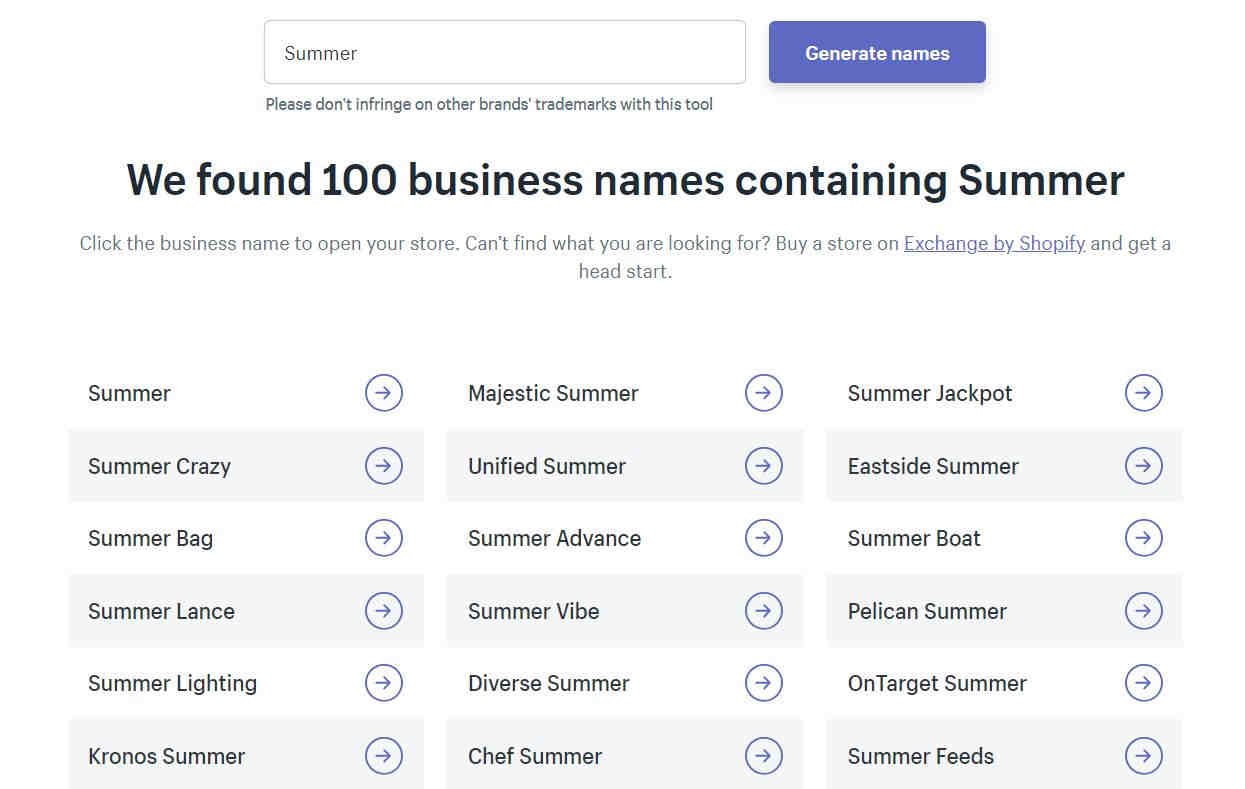
- Brainstorm ideas with Shopify’s Business Name Generator.
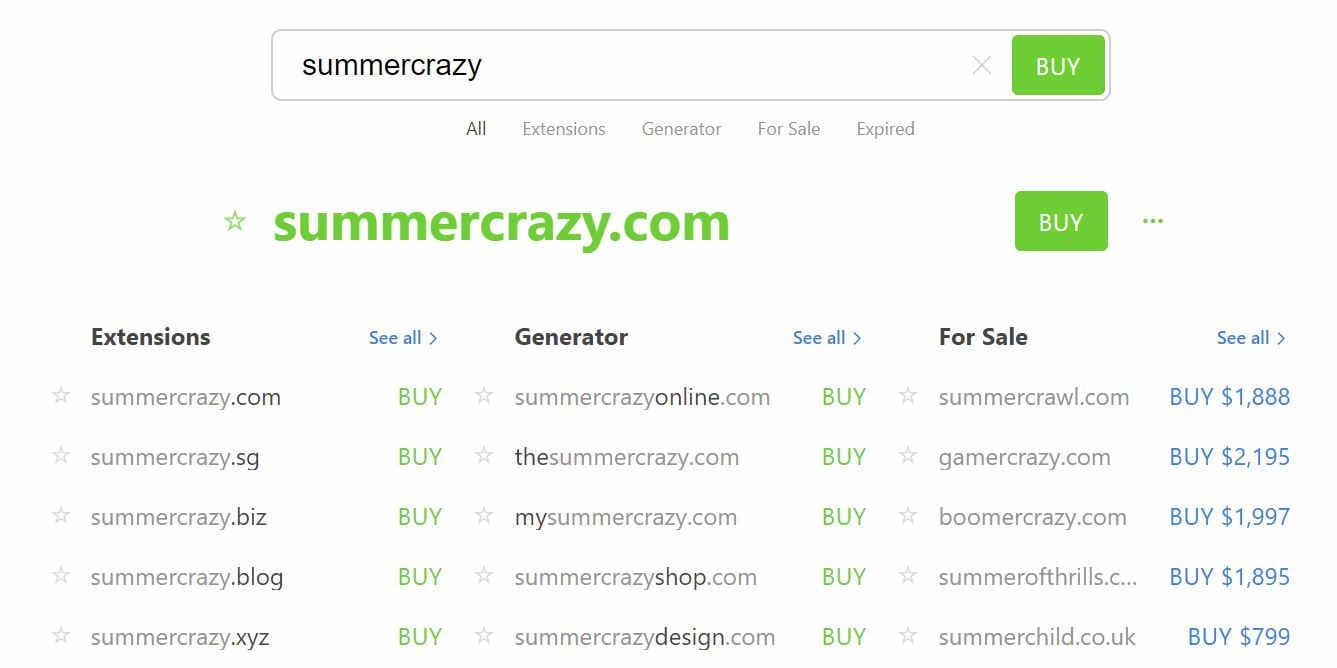
- Check which .com domains are free with a tool such as Instant Domain Search.
- Shortlist only names whose .com is available, then pick your favorite.
Tips for a good name:
- Keep it short, ideally under 20 characters.
- Avoid creative spellings that people will mistype.
- Avoid hyphens and numbers.
- Check that the name is not a trademark of another company.
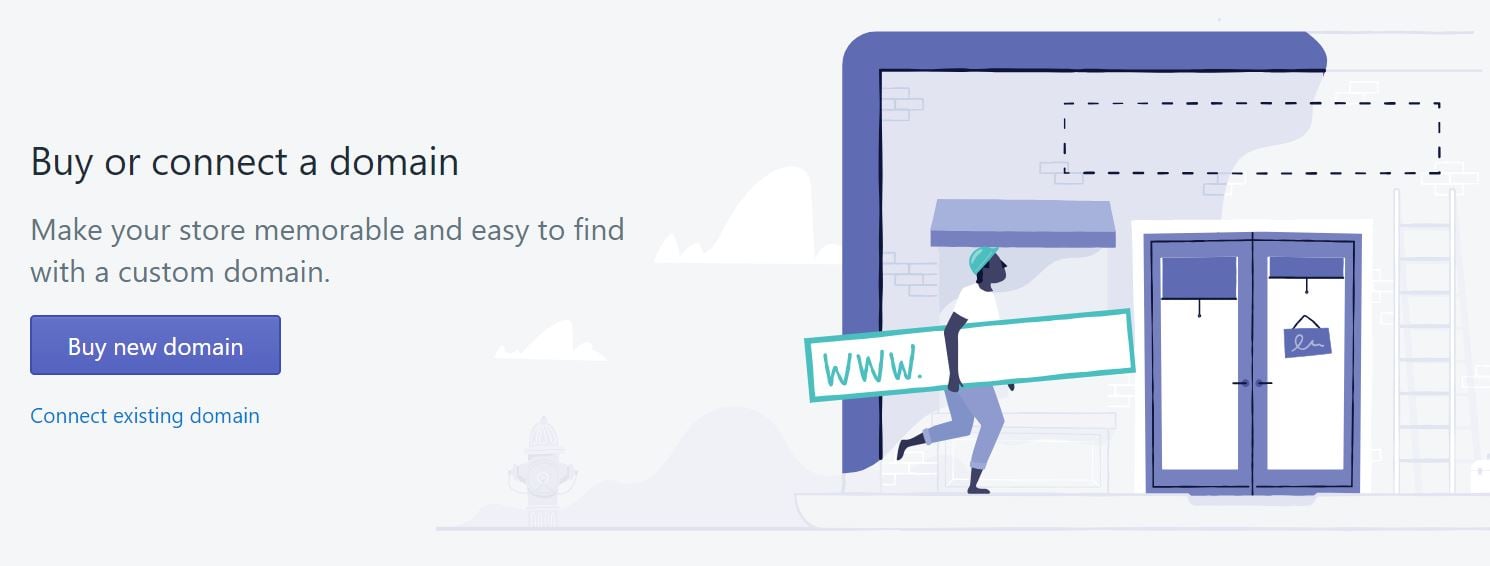
You can buy the domain from a registrar such as Namecheap or GoDaddy and connect it later, or buy it inside Shopify under the domains settings.
Create your Shopify account
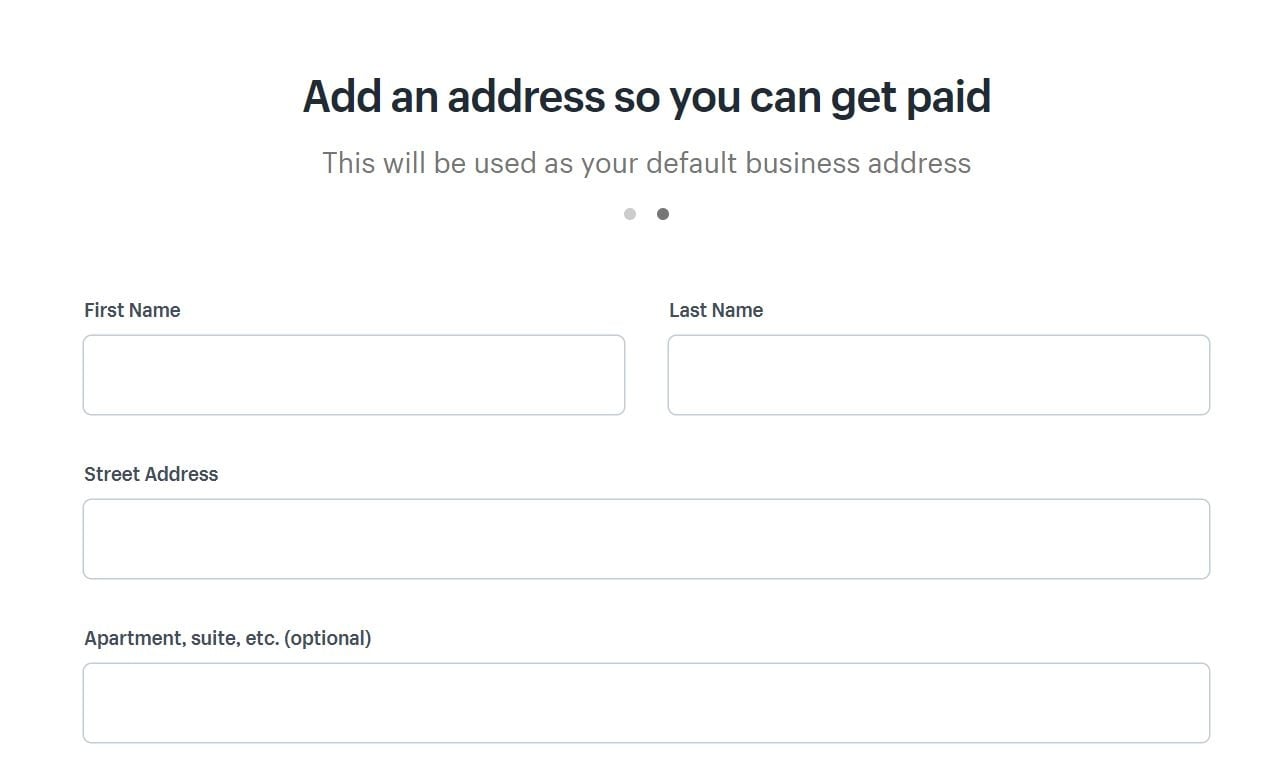
Go to Shopify, enter your email and follow the short sign-up questions about what you sell. Add a business address so you can get paid; a home address is fine at first.
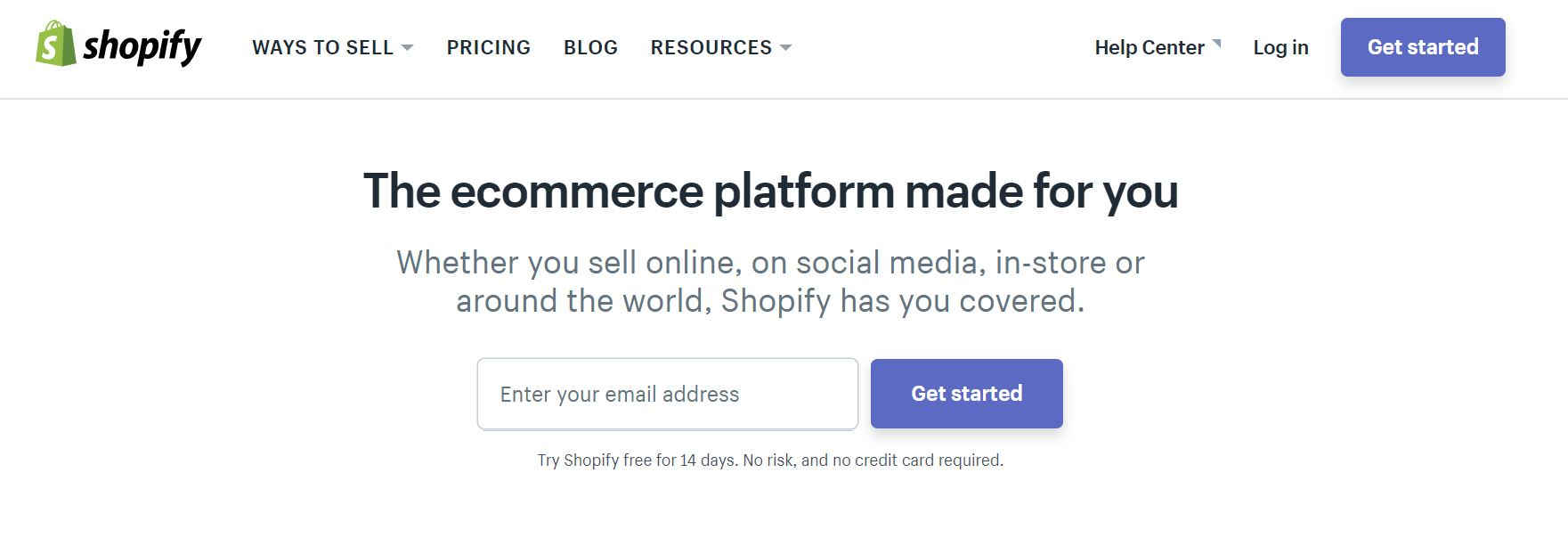
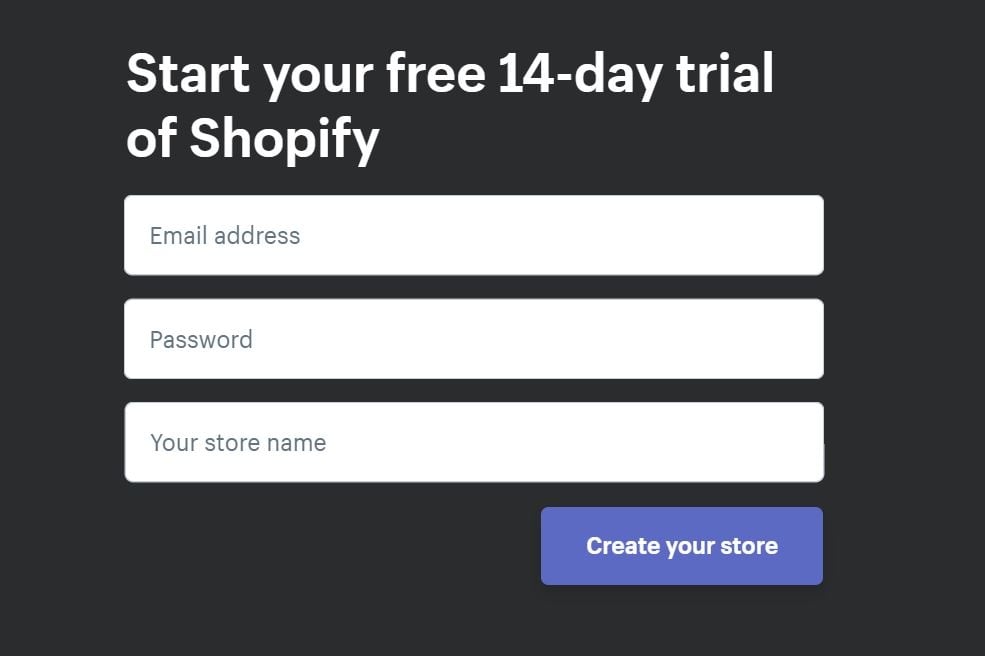
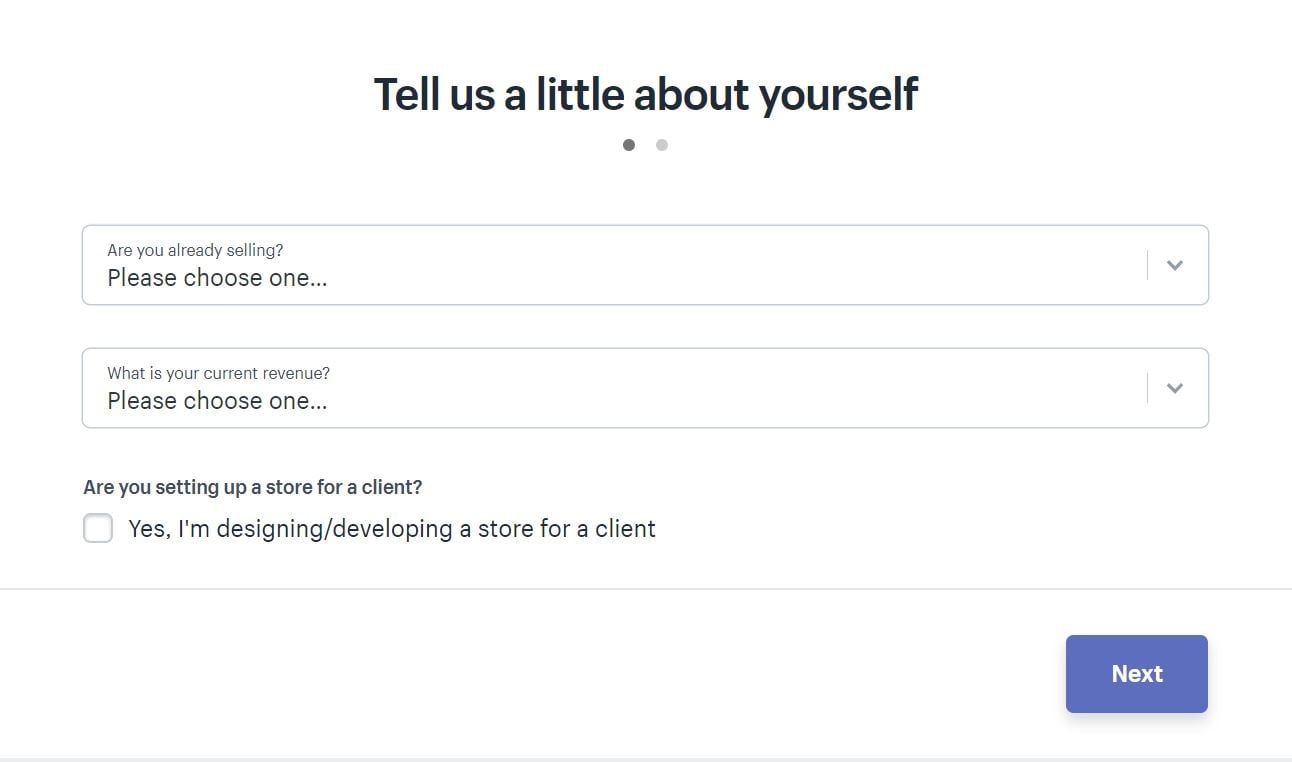
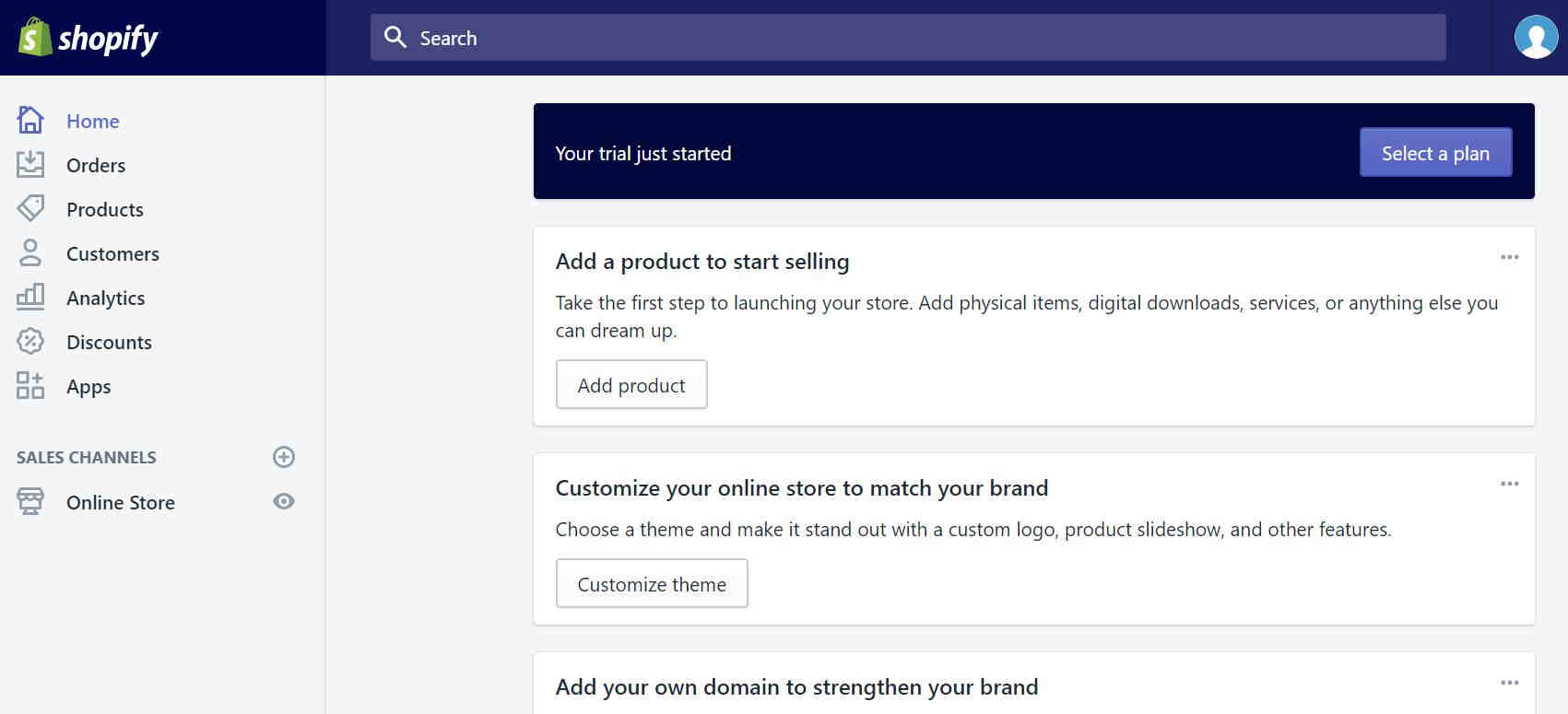
The trial shown in these older screenshots was 14 days. In 2026 the standard offer is 3 free days, then $1/month for 3 months on most plans. Our post on the Shopify free trial explains the current terms.
After sign-up you land on your store dashboard (Shopify admin). This is where you manage your theme, products, orders and settings.
Step 2: Pick a theme for your eCommerce website
A theme controls how your store looks. Shopify’s Theme Store has free themes made by Shopify and paid themes from partners.
Current free themes (2026)
Shopify’s own free themes now include Dawn, a clean, image-focused theme, and the Horizon family introduced with Shopify’s Summer 2025 Editions. Horizon themes use flexible “theme blocks”, so you can rearrange sections without code.
Browse all options in the Shopify Theme Store. Filter by catalog size and industry, and preview each theme with your own products.
Older themes you will see in tutorials
Many guides still recommend free themes like Boundless, Pop and Supply. These are older “vintage” themes from before Online Store 2.0 and are not the best choice for a new store.




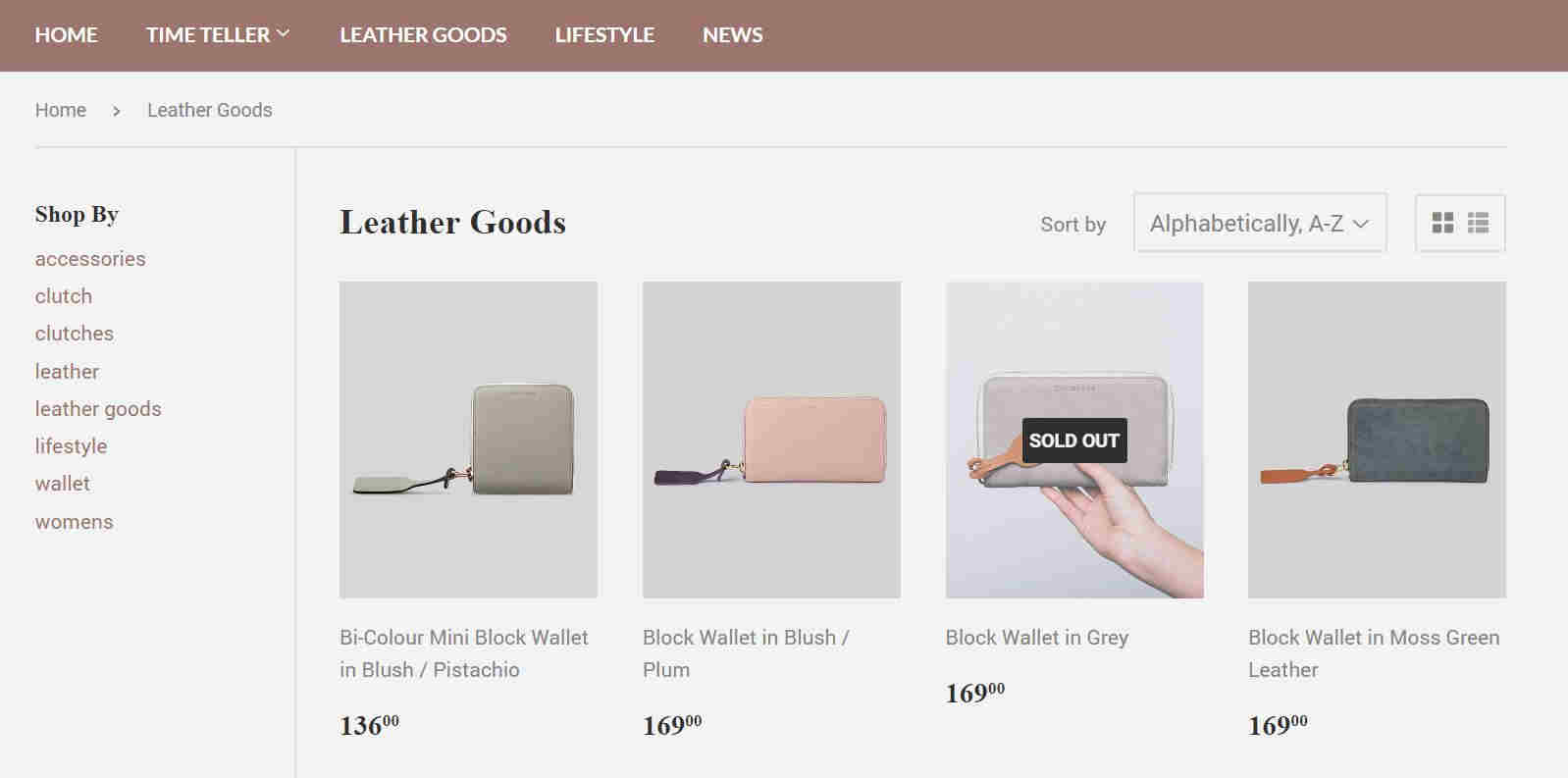
The ideas behind them still apply, though. Choose large product images if your photos are strong, and strong filtering (by price, size, brand) if you have many SKUs.
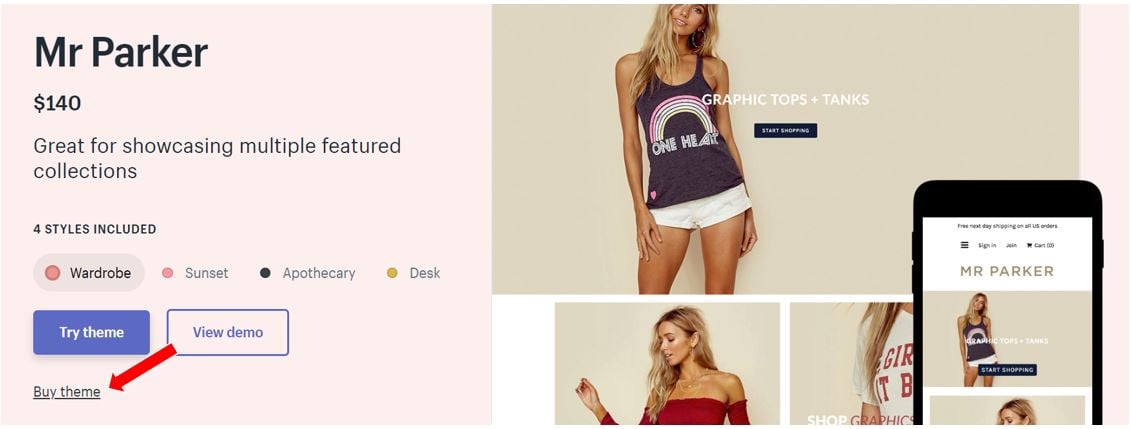
Paid themes such as Symmetry, Reach and Mr Parker were popular picks in older guides. Check the Theme Store to see whether each is still sold and updated before you buy.



How to install and customize a theme
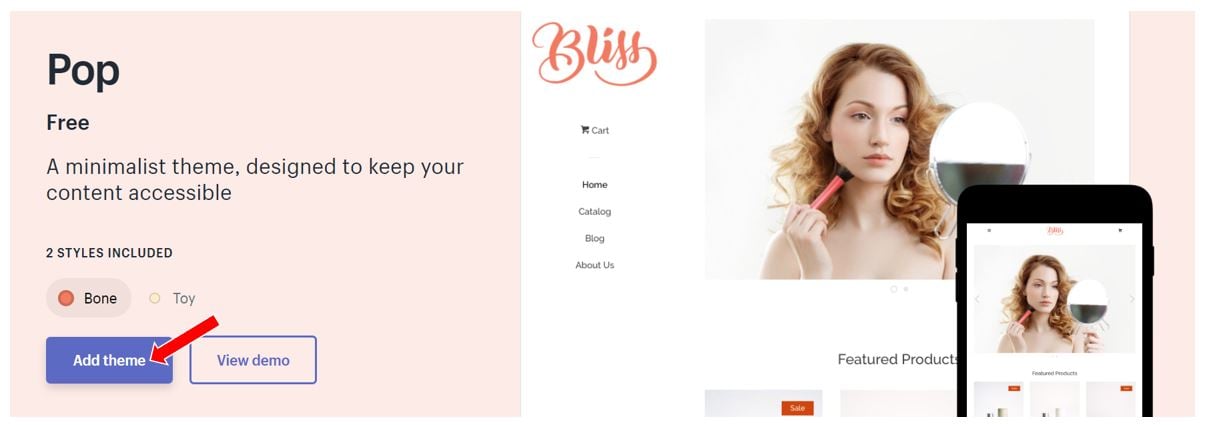
For a free theme, click “Try theme” or “Add theme” on its page. It appears in your theme library in the admin.
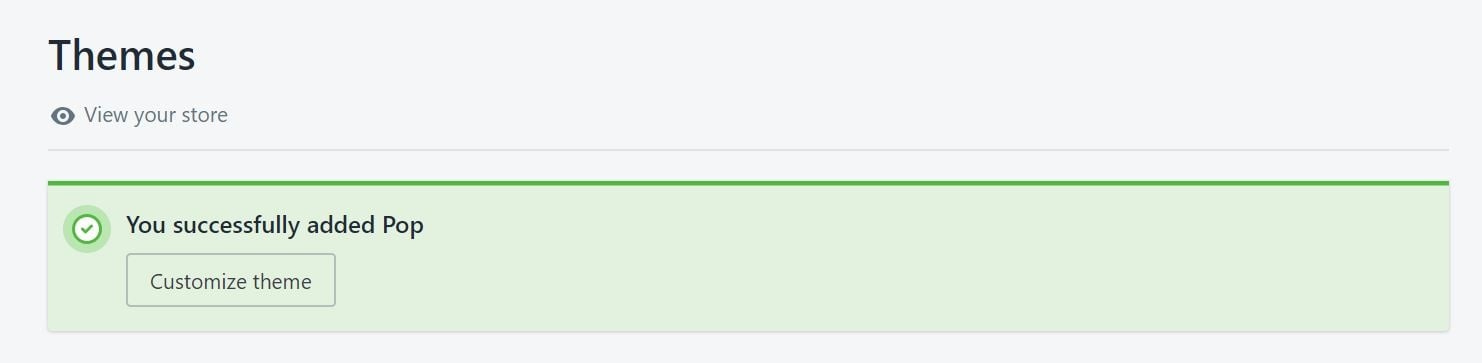
Click “Customize” to edit colors, fonts, the homepage sections and the menu. Publish it when you are happy.
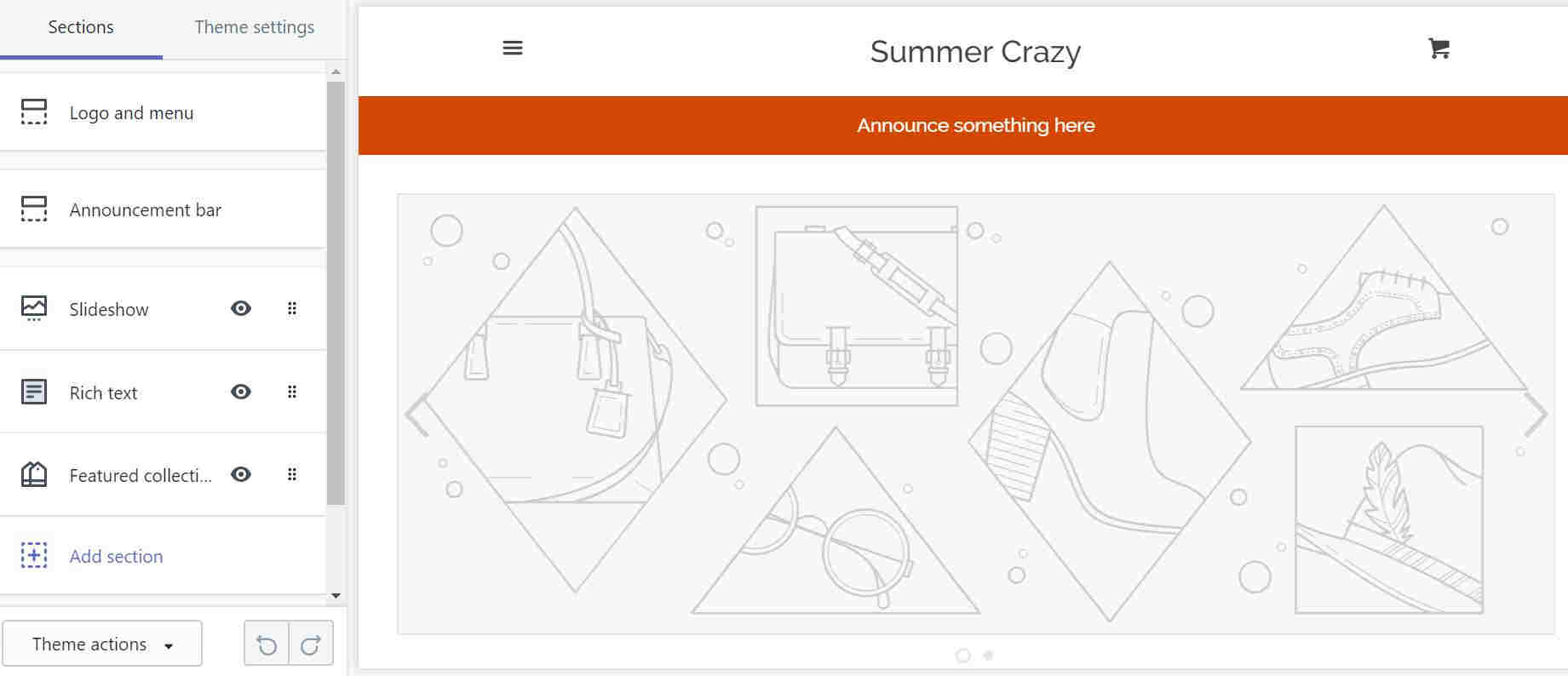
For a paid theme, you can preview it first and pay once to keep it. Paid themes include their developer’s updates and support.
Step 3: Optimize your store settings
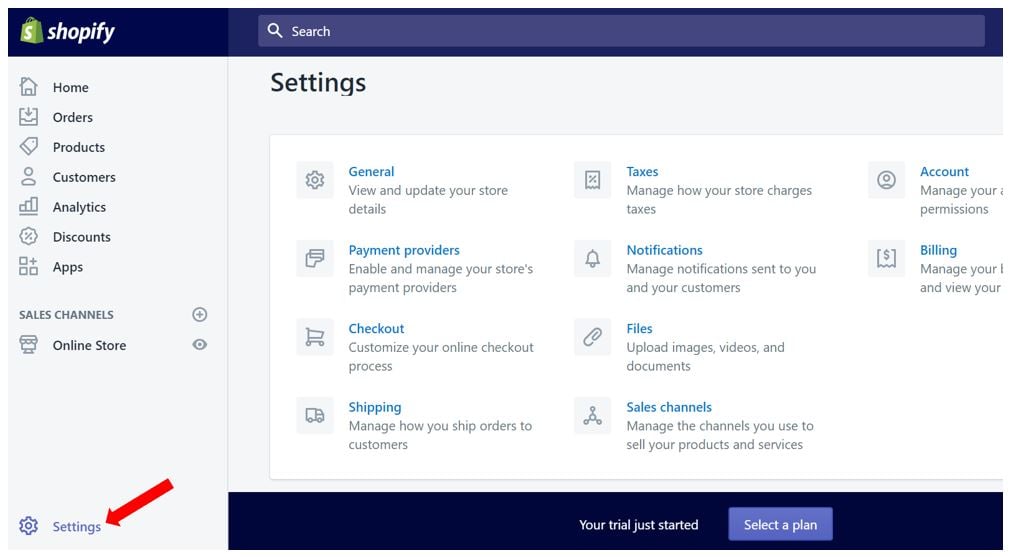
Open “Settings” in the admin and work through each section. These settings decide your prices, checkout and shipping.
General settings
Check your store name, contact email, address, time zone, units and store currency. Shopify uses these for prices, shipping weights and order times.
Taxes
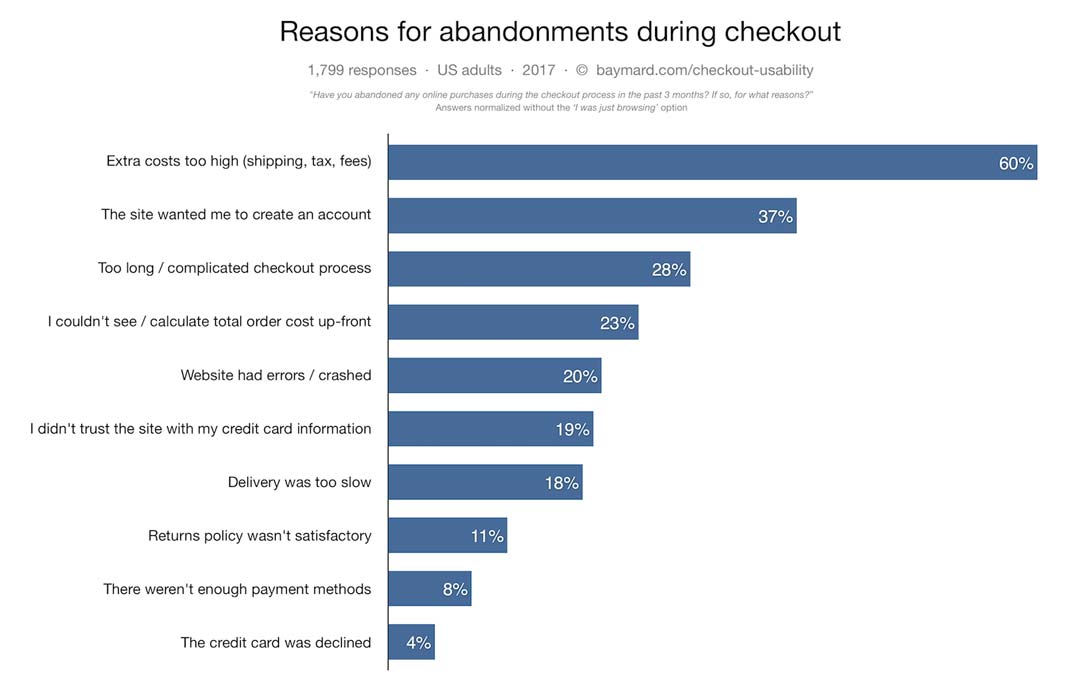
Decide whether prices include tax. Showing the full price early is usually better, because surprise costs at checkout cause many buyers to leave.

Payments
Activate Shopify Payments if it is available in your country, and add PayPal as a second option. To receive payouts you need to add your bank details and business or tax information.
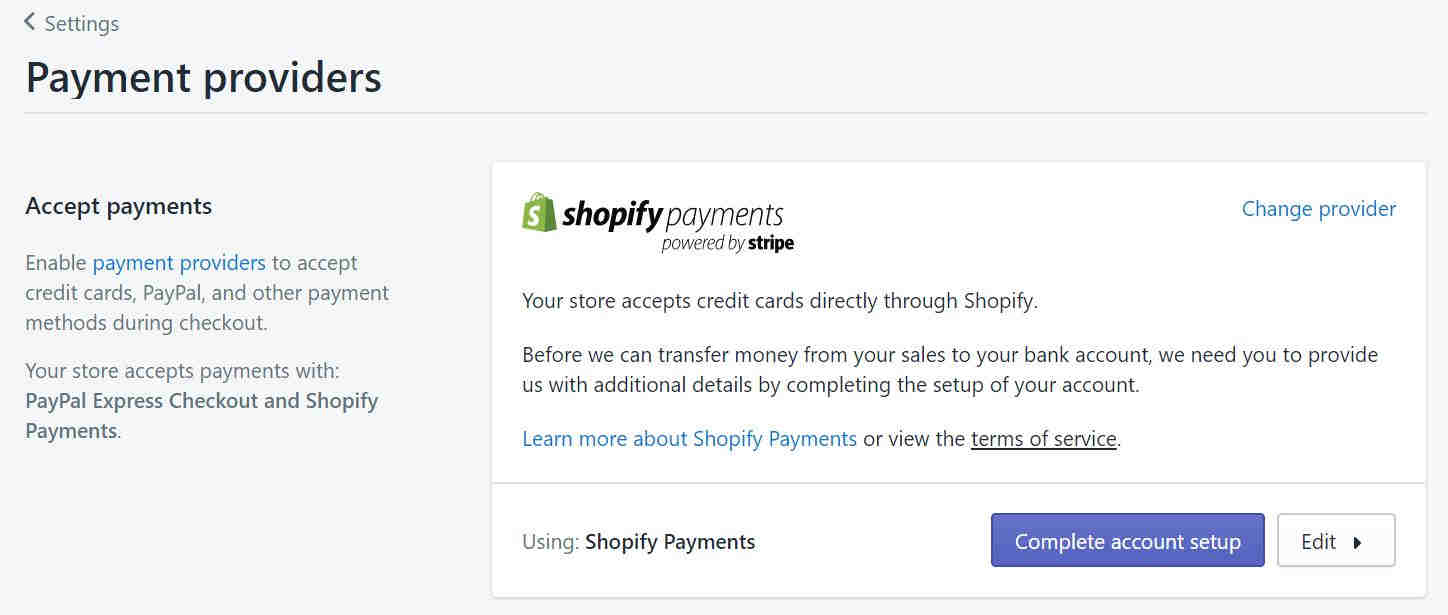
Alternative payment methods, such as local wallets or crypto gateways, can be added from the same page. Only add the ones your customers actually use.
Notifications and abandoned checkouts
Shopify sends automatic emails for order confirmation, shipping and cancellations. Edit them to match your brand.
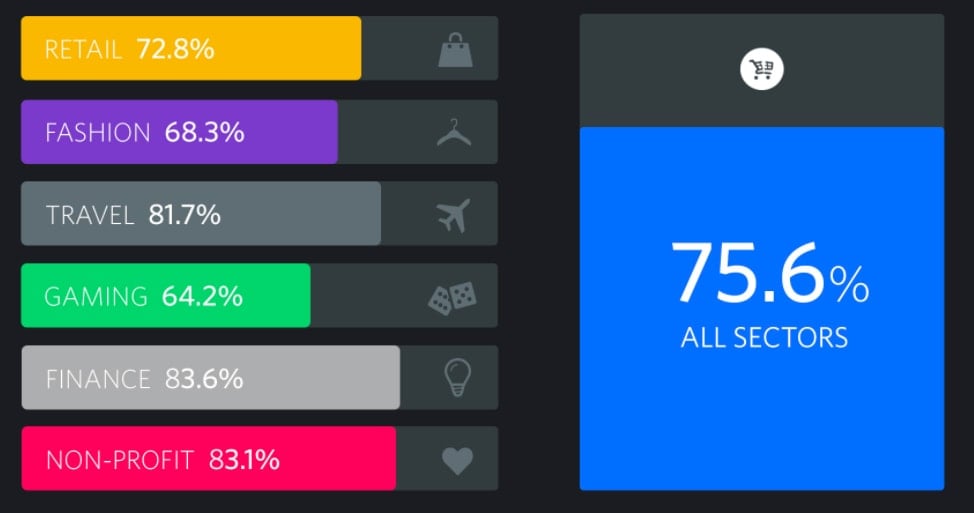
Set up abandoned checkout emails early. The Baymard Institute puts the average online cart abandonment rate at around 70%, so a simple reminder email can recover real sales. For ideas, see Shopify’s list of abandoned cart email examples.
Checkout
Keep checkout short. Allow guest checkout or quick sign-in, ask only for the fields you need, and use the shipping address as the billing address by default unless you sell many gifts.
Policies
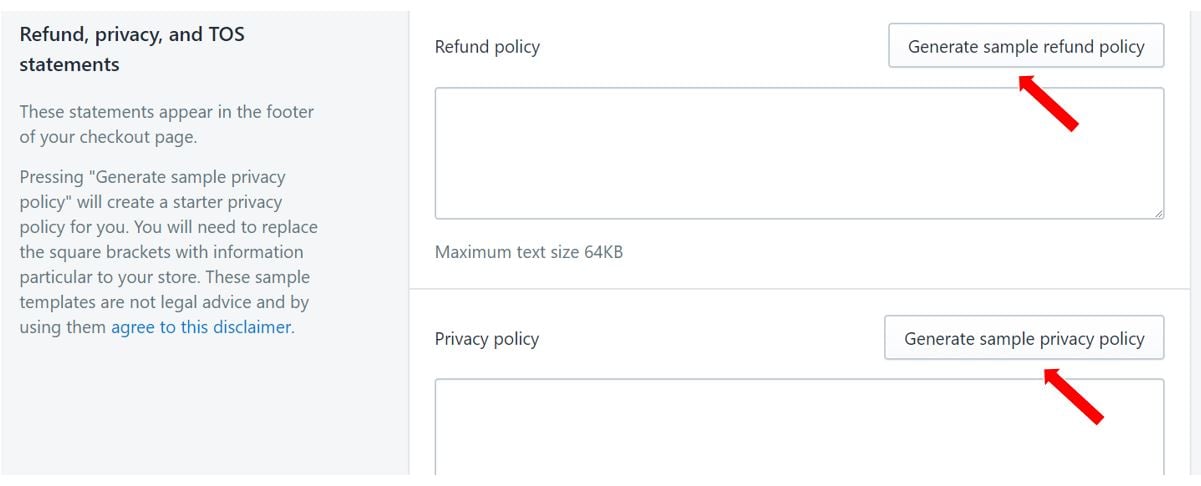
Add refund, privacy, terms of service and shipping policies. Shopify can generate templates, but edit them so they match how you really handle returns.
Shipping
Set where you ship from, the zones you ship to, and the rates for each zone. Free shipping above a minimum order value is a common way to protect margins.
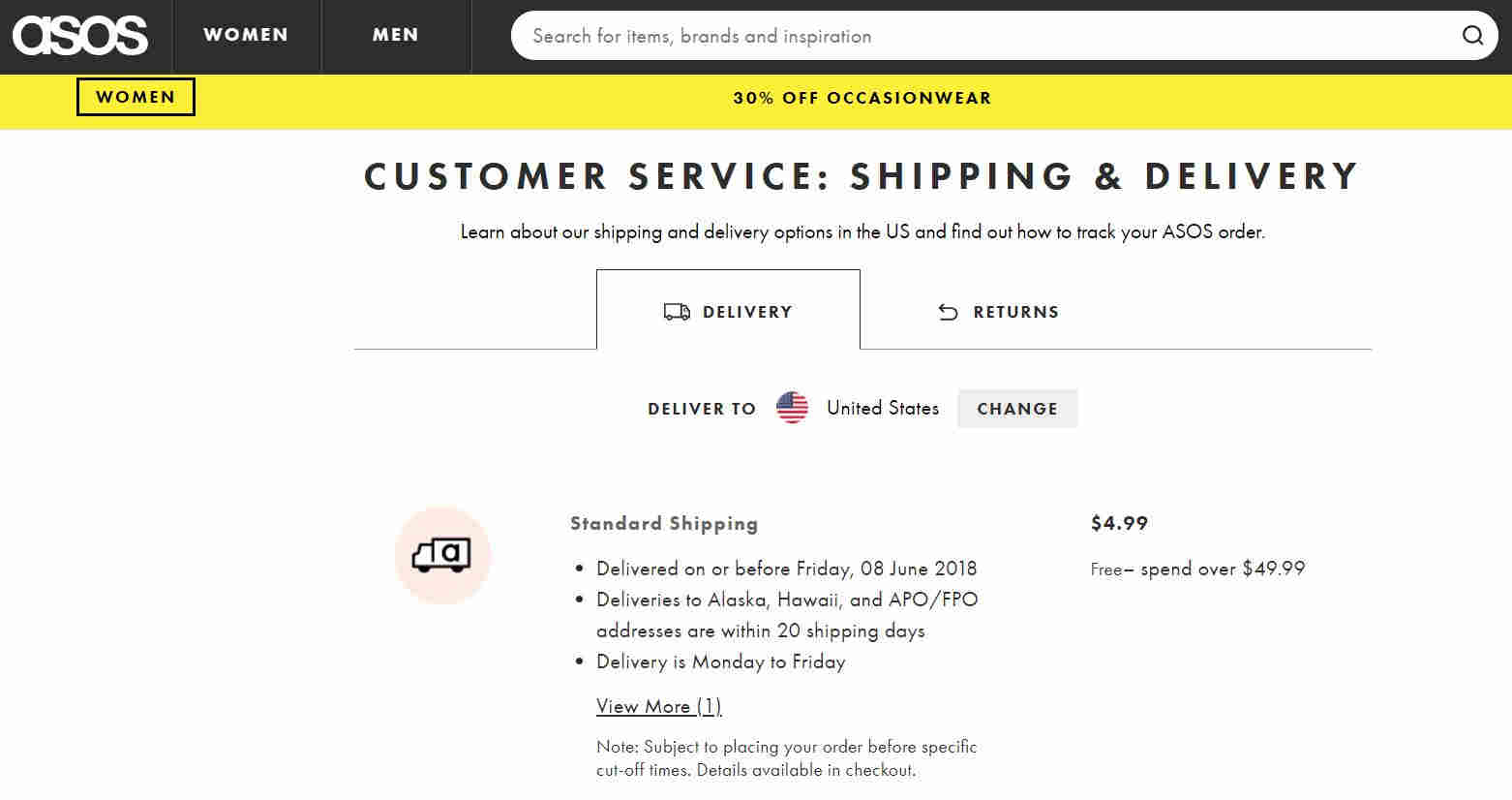
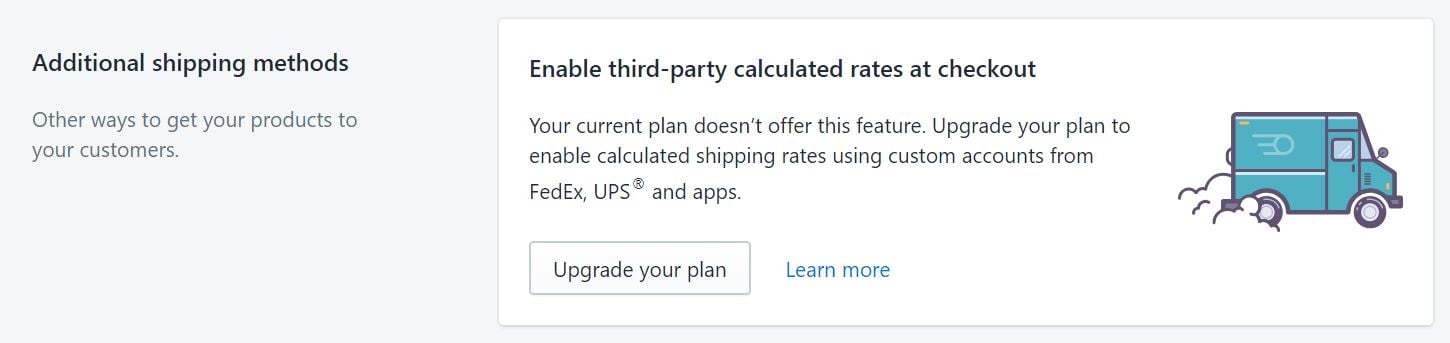
Flat rates are simple. If your products vary a lot in size and weight, consider carrier-calculated rates, which show live prices from carriers such as USPS or Canada Post. On Shopify these depend on your plan and country.
Step 4: Add your products
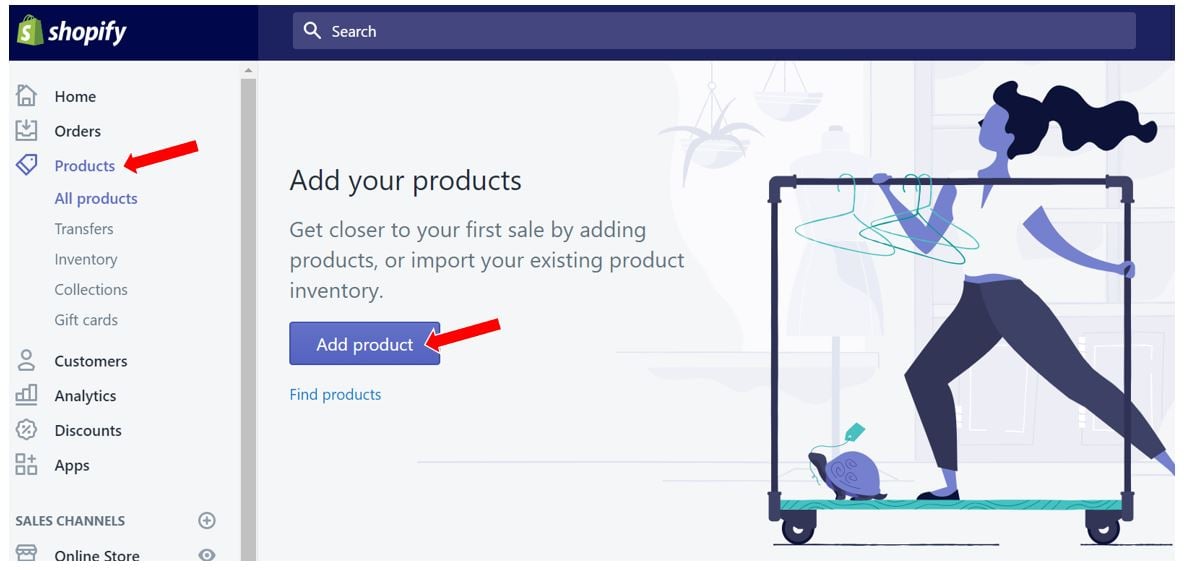
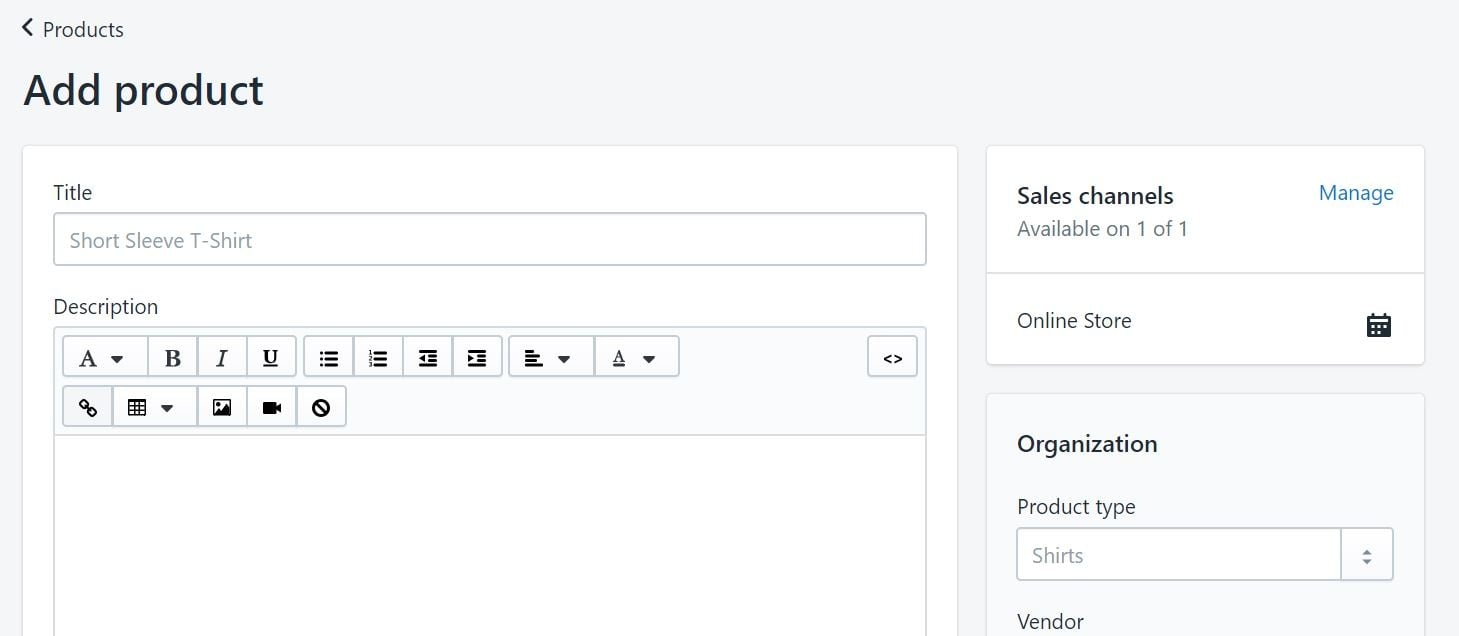
Go to “Products” and click “Add product”. Enter the title, description, price, images, inventory and variants such as size or color.
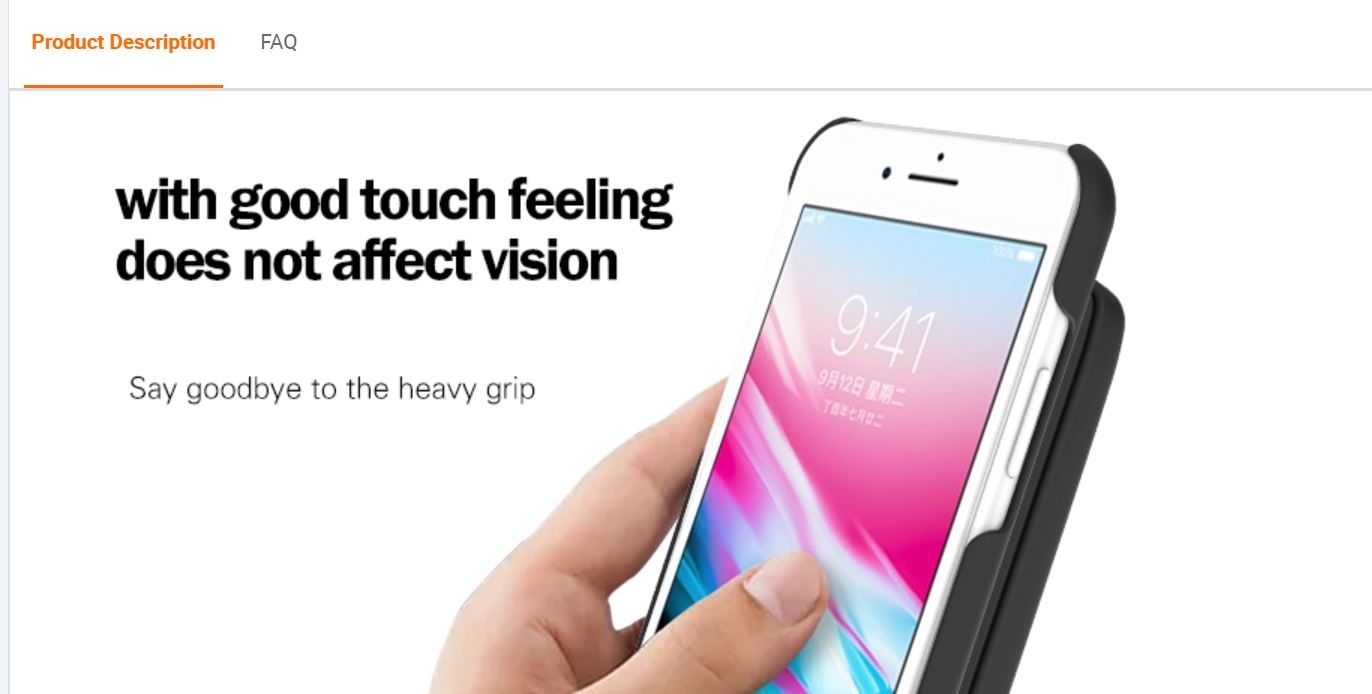
Do not copy and paste the manufacturer’s description. It is often poorly written, and duplicate text gives Google no reason to rank your page.
Write for your customer: who the product is for, the problem it solves, key specs, and what is in the box. Use clear photos from several angles.
Product SEO
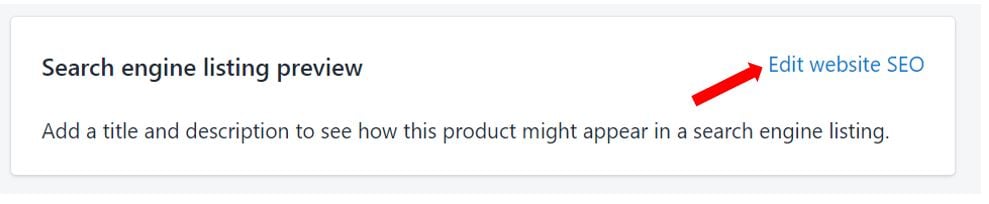
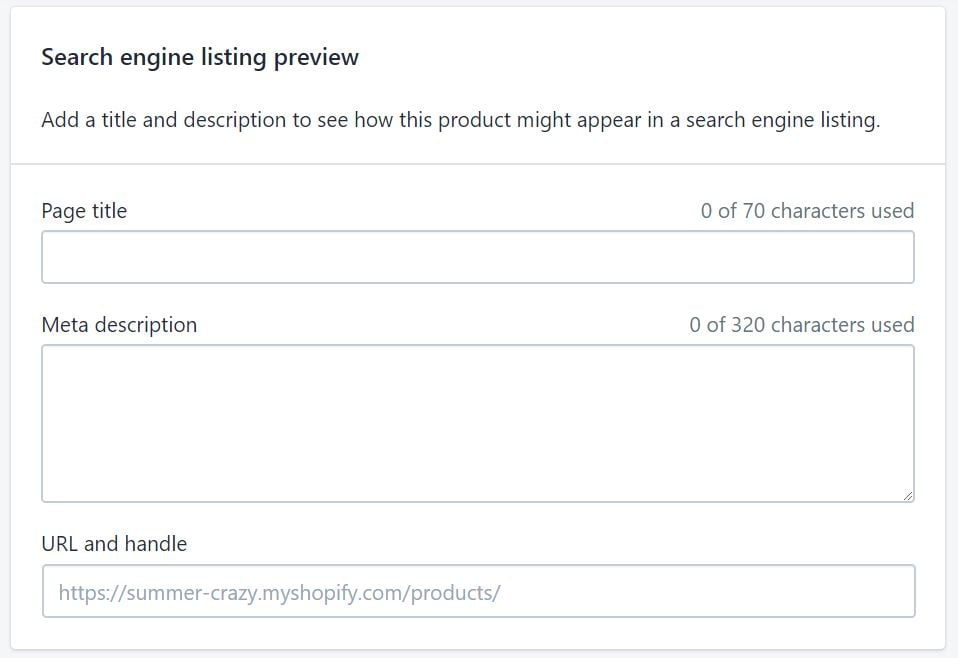
Scroll down to the search engine listing section of each product. Edit the page title, meta description and URL handle so they include the words buyers search for, without stuffing.
Step 5: Set up your main pages
Every eCommerce website needs a few trust pages. Add them under “Online Store” then “Pages”.
- About us
- Contact
- Shipping and returns
- Terms and privacy
- FAQ and, if relevant, a size guide or blog
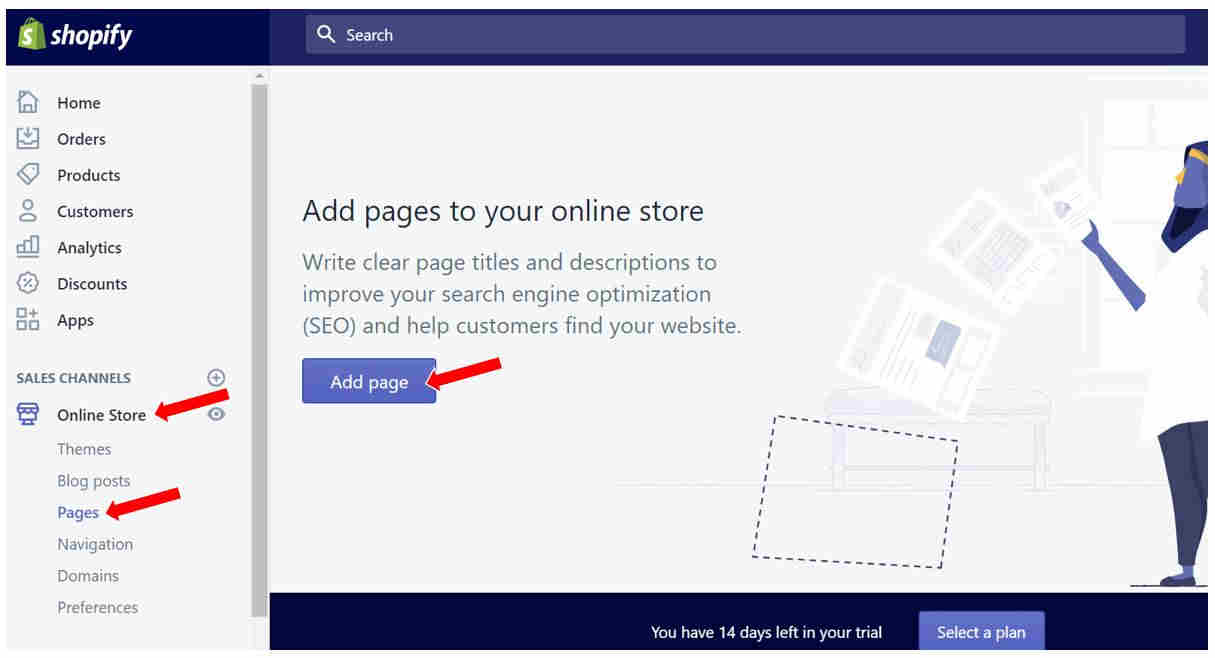
Your About page matters more than many owners think. Explain who you are and why you started, with a real photo, because shoppers want to know a real business is behind the store.
Step 6: Place a test order
Before launch, check that payments, emails and order flow work. Shopify’s Help Center explains how to place test orders.
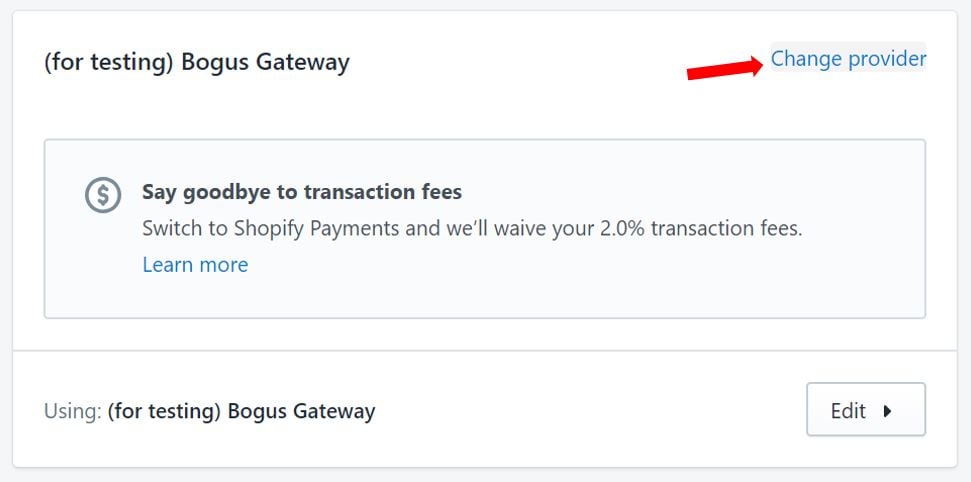
You can test with Shopify Payments test mode or with the test payment gateway (often called the Bogus Gateway). Note that Shopify only lets you test a payment gateway after you have chosen a paid plan.
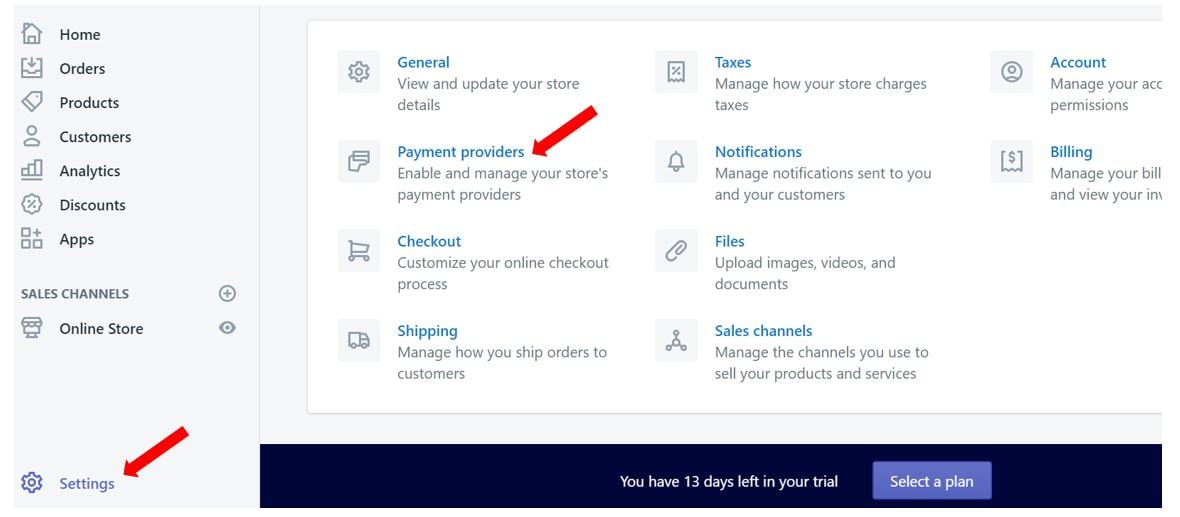
Using the Bogus Gateway
- In payment settings, deactivate any live credit card provider.
- Add a provider, choose the third-party option, and select “(for testing) Bogus Gateway”.
- Activate it and wait for the page to reload.
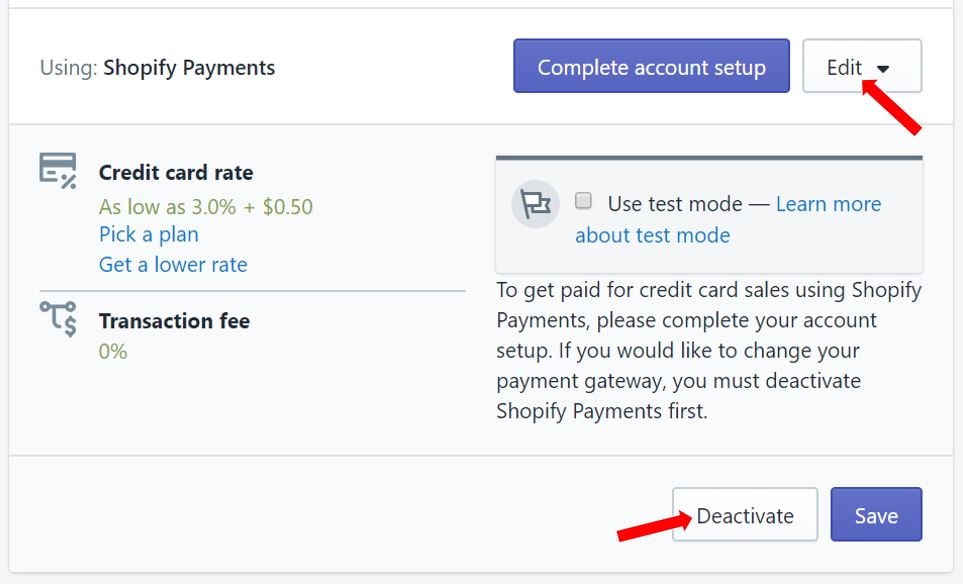
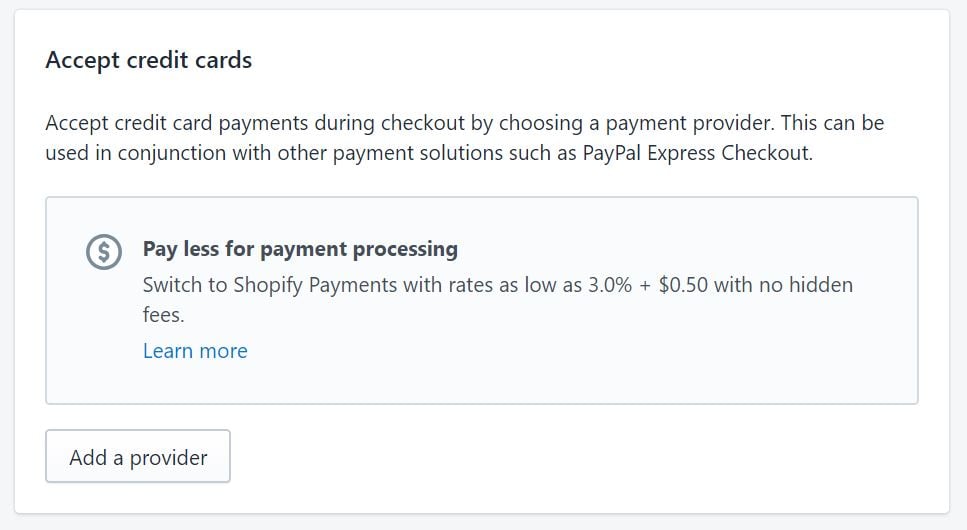
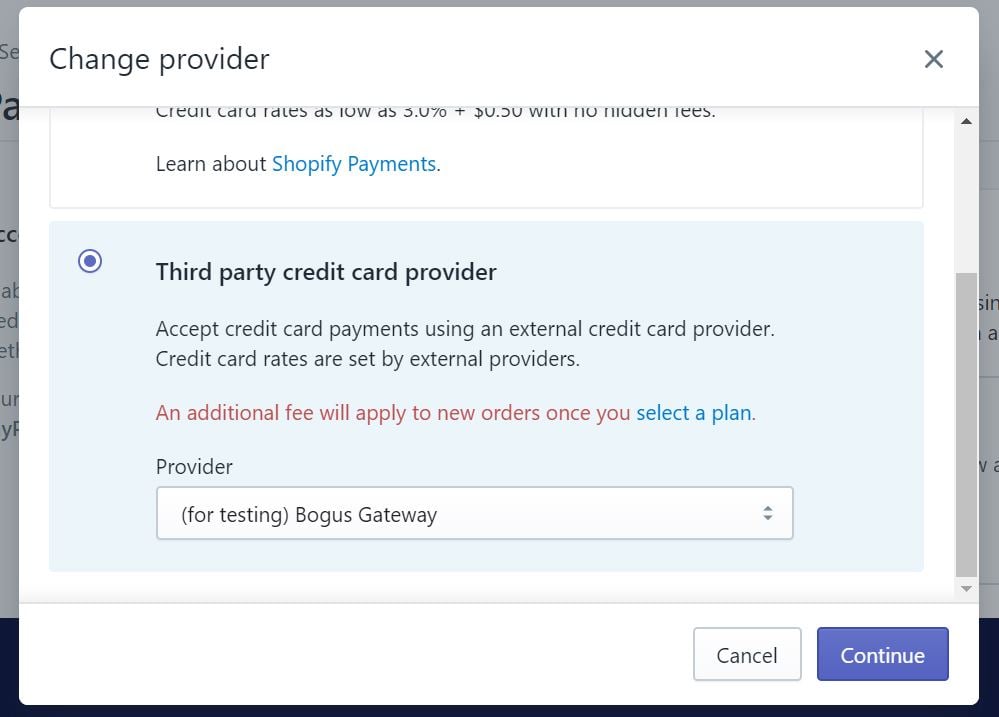
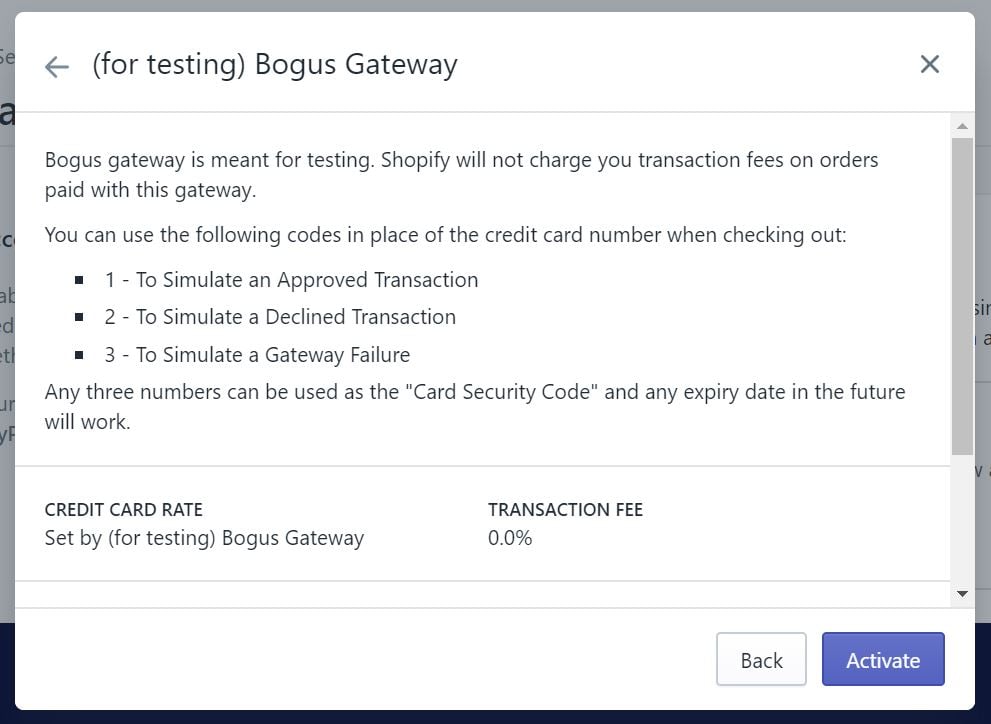
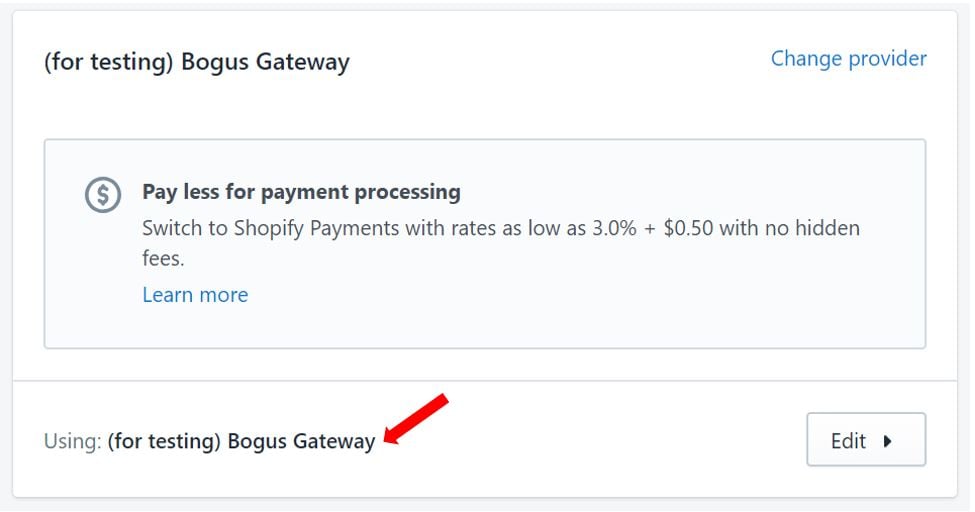
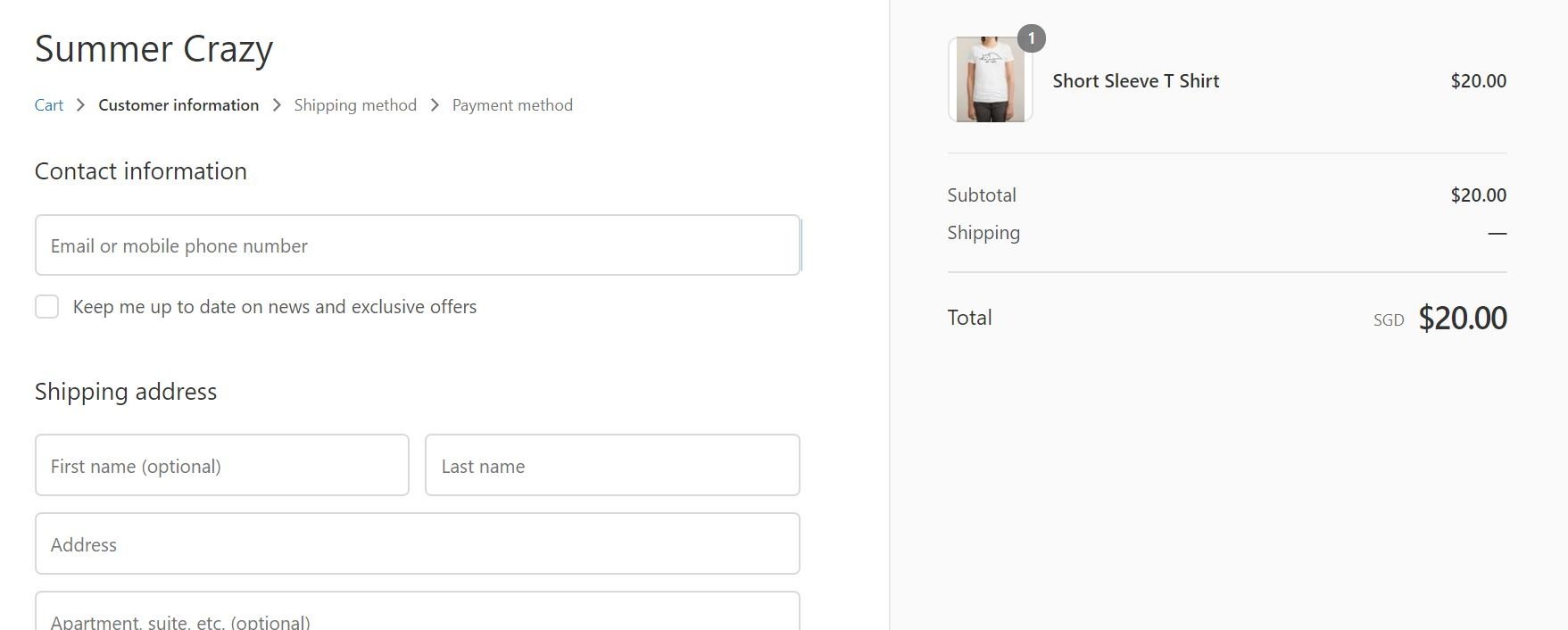
Now go to your store and buy a product. At payment, enter “Bogus Gateway” as the name on the card.
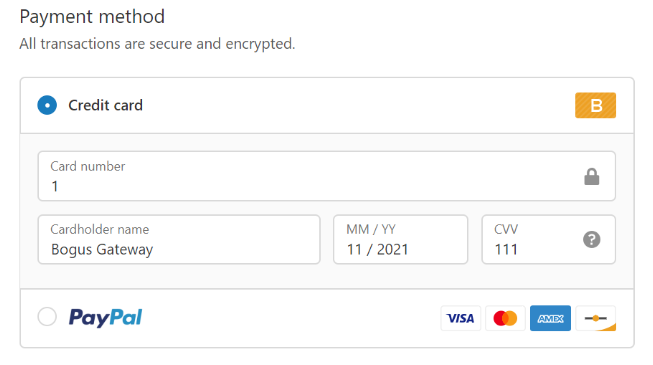
For the card number, enter 1 for a successful transaction, 2 for a failed one, or 3 to simulate an error. Use any future expiry date and any security code.
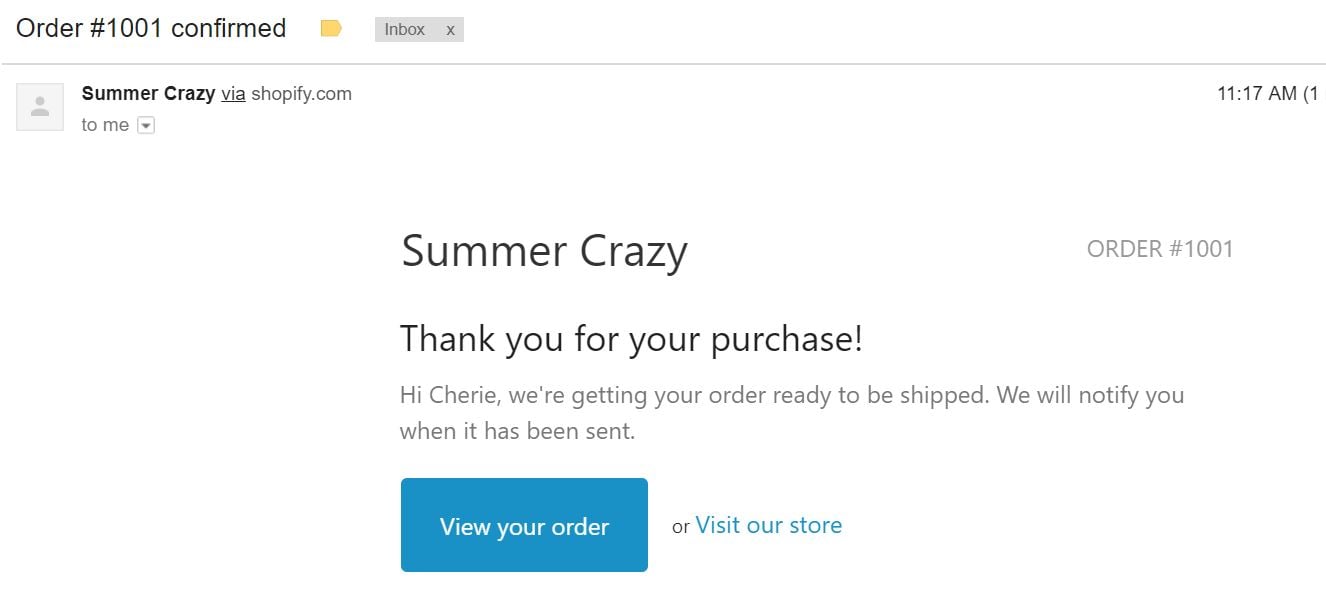
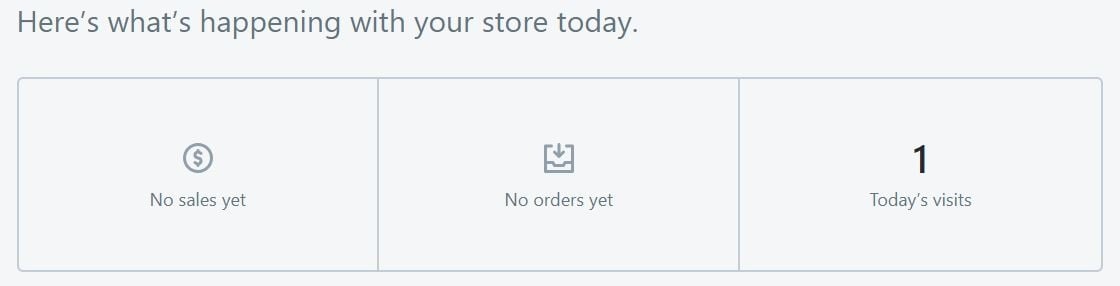
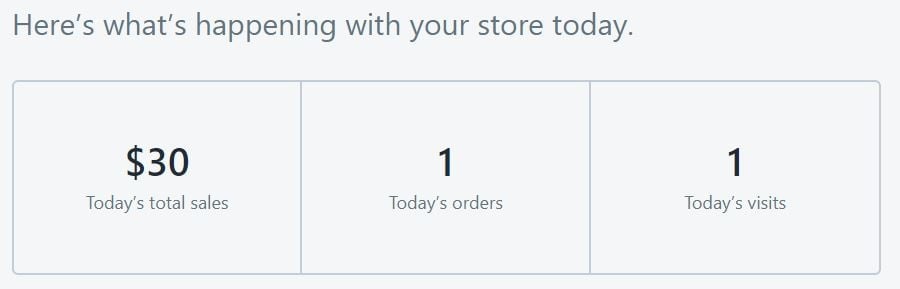
You should see the order confirmation page and receive the confirmation email. Test orders do not count in your sales reports or payouts.
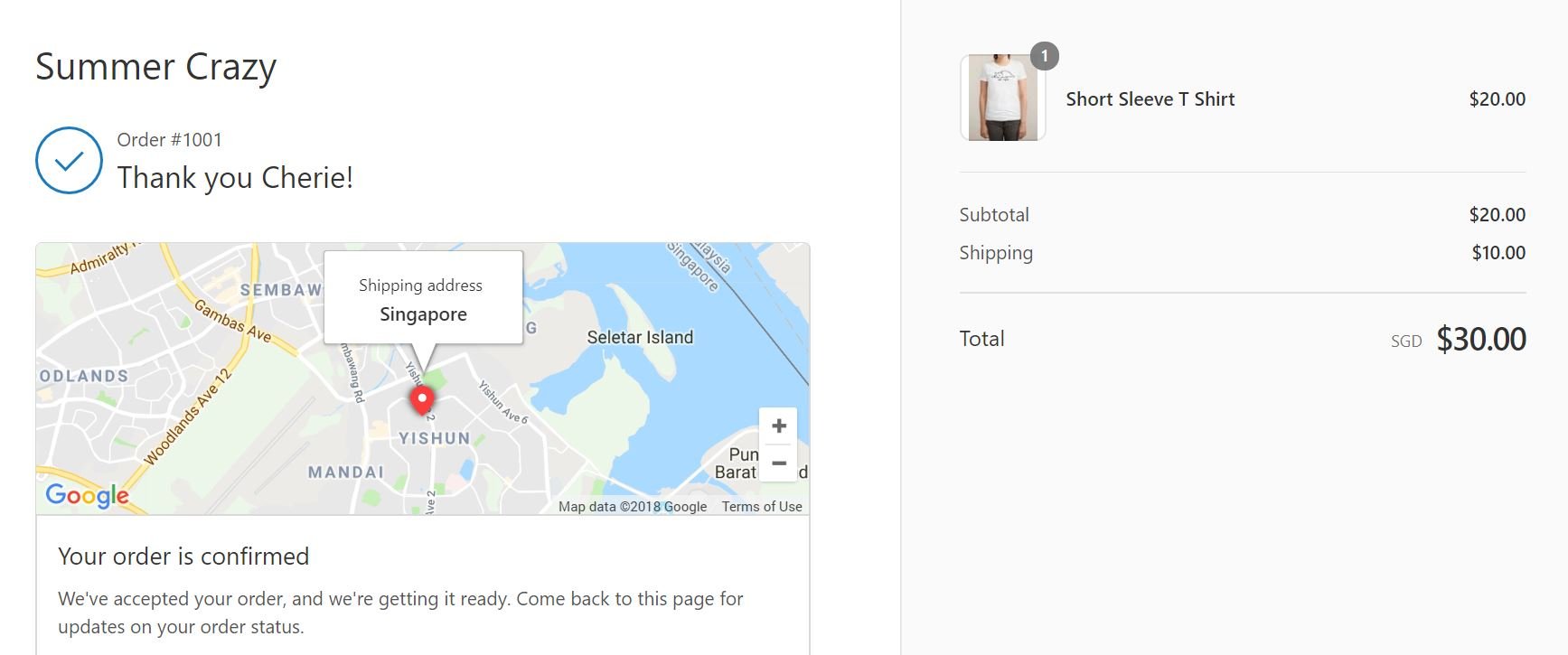
When you finish, switch your real payment provider back on.
Testing with a real card (optional)
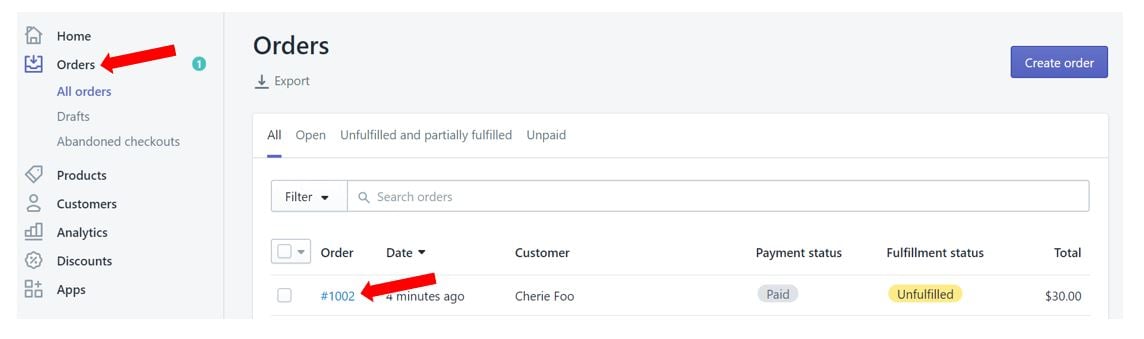
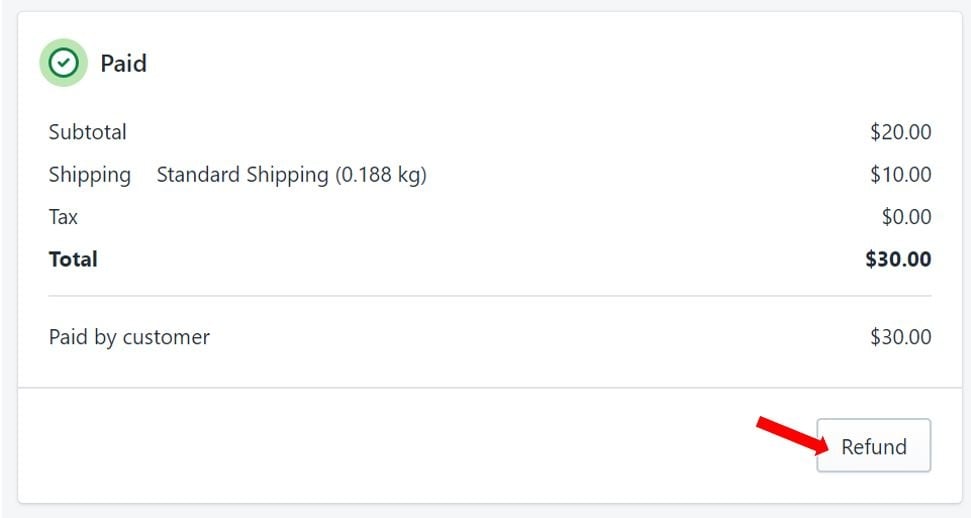
You can also buy from your store with a real card and then cancel and refund the order. Be aware that the payment processor may still charge fees.
Step 7: Unlock and launch your online store
New stores are protected by a password page. To launch, go to the online store preferences and remove the password.
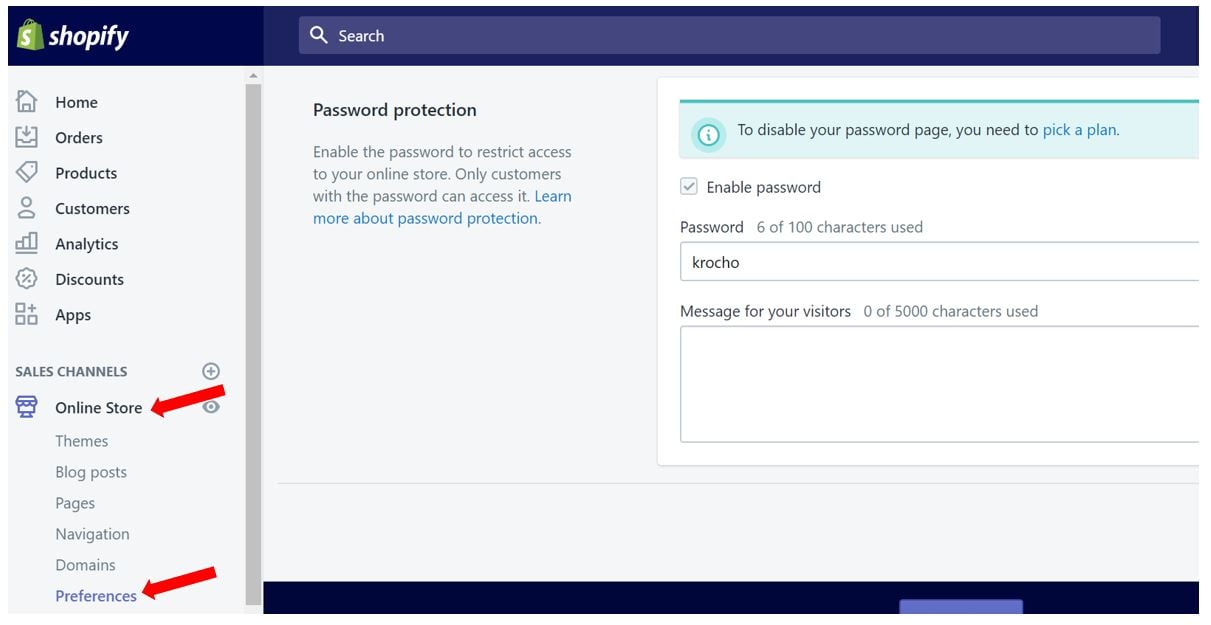
If you are still on a trial, Shopify asks you to choose a plan first. Our guide on how to make a Shopify store live covers this step in more detail.
Apps that help a new store grow
Shopify’s App Store has thousands of apps. Start with only the few you need, because each paid app adds a monthly cost.
- Subscriptions: Shopify’s own Subscriptions app, or Bold Subscriptions for more complex subscription boxes.
- Upsells and cross-sells: product recommendations in your theme, or a dedicated upsell app.
- Referral and affiliate programs: Refersion helps you pay customers and creators for referrals.
- SEO: tools such as Plug in SEO scan your pages for missing titles and descriptions.
For more ideas, see our list of the best free Shopify apps or Shopify’s own list of popular free apps.
What’s next after you launch?

Your store is live, but the work has only started. Now you need traffic.
- Short term: test small Google Shopping and Meta ad budgets, and email friends and early fans.
- Long term: build SEO with helpful product and blog content, and earn links from relevant sites.
- Always: collect emails and reviews from day one.
Paid ads bring fast results but stop when you stop paying. SEO and email take longer but lower your cost per customer over time.
FAQ
How much does it cost to build an eCommerce website?
On Shopify, the Basic plan costs $39 a month billed monthly or $29 a month billed yearly, plus a domain (often around $10–20 a year) and payment fees. Paid themes and apps add more, while WooCommerce swaps plan fees for hosting and extension costs.
Can I build an eCommerce website for free?
Not fully. WooCommerce is a free plugin, but you still pay for hosting and a domain, and most hosted builders like Shopify charge a monthly plan after the trial.
How long does it take to build an online store?
With a small catalog and a ready-made theme, many people finish the basic setup in a weekend. Large catalogs, custom design and product photography can take weeks.
Do I need coding skills to build an eCommerce website?
No. Hosted builders such as Shopify, Wix and BigCommerce let you build a store with drag-and-drop editors and themes. Coding helps only for custom features.
Is Shopify or WooCommerce better for beginners?
Shopify is usually easier because hosting, security and updates are included. WooCommerce suits people who already use WordPress and want full control over their site.
Conclusion
Learning how to build an eCommerce website is mostly about doing the steps in the right order: name and domain, platform, theme, settings, products, pages, test order and launch. Keep your first version simple, then improve it with real customer feedback.
For a deeper Shopify walkthrough, read our guide on how to set up your Shopify store. When you are ready, you can start your store below.